Cricut Alternatives in 2026: Stickers, Vinyl, and Paper Crafts
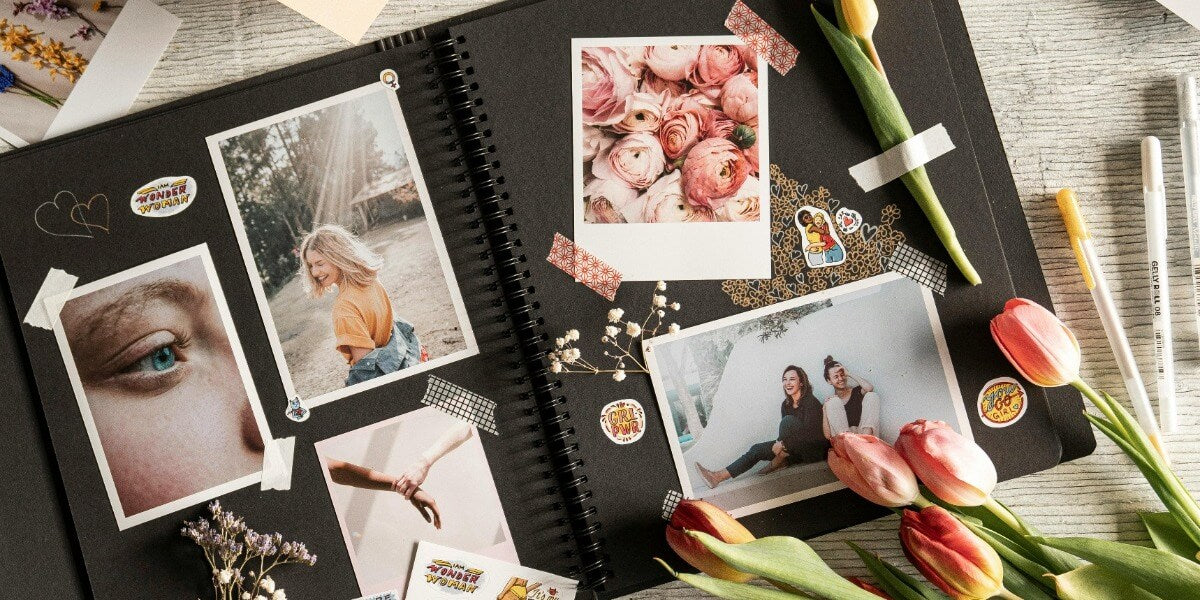
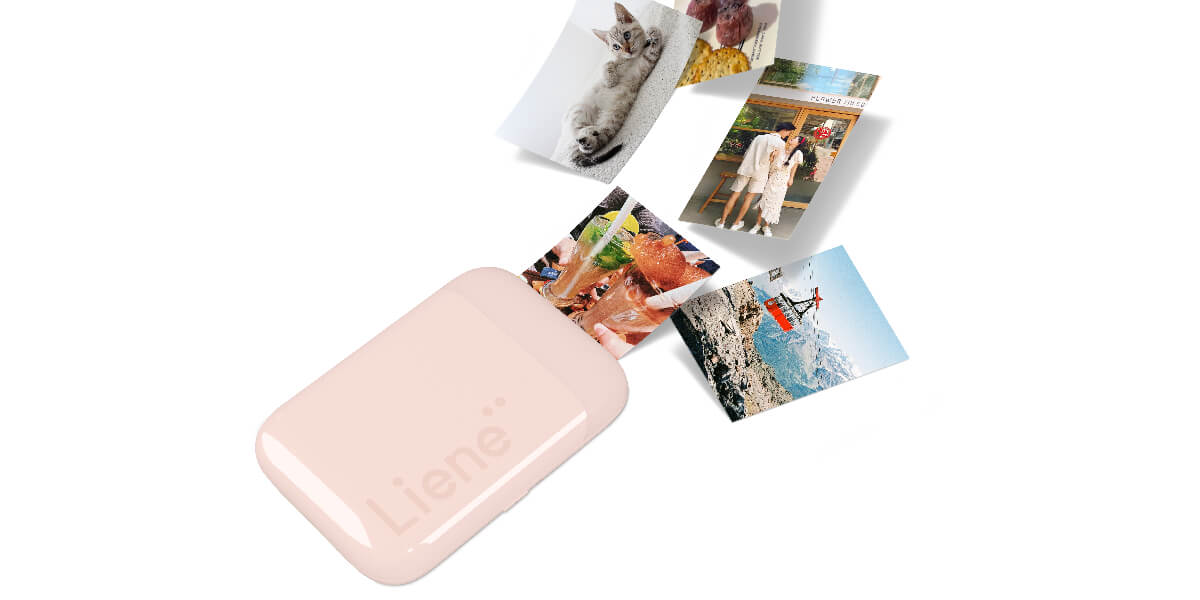
A Cricut alternative depends on the projects you want to make. For custom photo stickers on compatible Liene media, consider Liene PixCut S1. For vinyl and mixed crafts, look at Silhouette Cameo 5α; for scanned drawings and paper projects, Brother ScanNCut DX SDX125E offers a different way to work. These devices serve different purposes and are not interchangeable across all materials and projects. Start with the thing you want to finish. A sheet of pet stickers and iron-on lettering for a tote bag ask very different things of the equipment. This guide is published by Liene, the brand behind PixCut S1. References to other manufacturers are for product identification and comparison. Choose Your Cricut Alternative by Project Find your next project in the table, then check what you would need to make it. Choose a workflow for the project you want to make Your project Route to consider Separate printer? Main limitation Custom photo stickers and labels PixCut S1: design, print, laminate, and cut No Dedicated compatible Liene media; not a general-purpose material cutter Vinyl lettering and iron-on designs Cameo 5α: prepare cut paths, cut material, weed, and apply Not for plain colored vinyl; yes for printed artwork Correct blade and material settings; heat application for iron-on Paper crafts and scanned drawings ScanNCut DX SDX125E: scan or select a design, then cut Not for cutting existing artwork; yes to print new artwork Mat, blade, material, and scan contrast affect the result A few simple stickers Existing printer, compatible sticker paper, scissors or trimmer Use the printer you own Manual cutting and material-dependent finishing A larger outsourced batch Print service: submit artwork, approve a proof, order No home printer needed Order quantities, finishing options, and delivery time For a broader explanation of these workflows, see sticker printers versus cutting machines. Decorative stickers illustrate possible project ideas; this photograph does not identify the equipment used to make them. Which Cricut Are You Replacing? An Explore, Maker, or Joy-family cutting machine is a different starting point from a StickerPix printer. On supported cutters, Print Then Cut uses a separate compatible printer for the artwork before the cutter follows its outline. The original Cricut Joy does not support Print Then Cut. Cricut Joy Xtra and Cricut Joy 2 support it, using a separate compatible printer to print the artwork. Print area, supported materials, and preparation steps vary by model, so follow the instructions for your specific machine. Cricut also offers StickerPix Print, which prints photos and uses pre-cut sticker sheets, and StickerPix Print + Cut, which prints and cuts custom-shaped stickers. See Cricut’s introduction to StickerPix for the differences between these products and Cricut cutting machines. For a Cricut Joy Xtra alternative, decide whether you still need vinyl and cards alongside stickers. That answer changes which category you should shop. For Custom Stickers: Liene PixCut S1 If your projects are pet stickers, journal decorations, or small gift labels, a dedicated sticker printer and cutter can cover the printing and cutting in one device. The Liene PixCut S1 uses dye-sublimation printing with a protective lamination layer and automatic contour cutting. Its kiss-cut stickers peel from an intact backing sheet. Liene PixCut S1 with a selection of printed sticker sheets and photos. The Liene Photo app provides the design-to-print workflow, with mobile and desktop options. Import your artwork, arrange the sheet, and check the cutting preview. PixCut S1 is designed for photo printing and photo-sticker creation using compatible Liene media, including dedicated 4×7-inch sticker sheets. It is not a general-purpose material cutter or a full-featured replacement for a Cricut cutting machine. It does not replace equipment for cutting ordinary adhesive-vinyl rolls, heat-transfer vinyl, or thick cardstock. For other sticker formats and equipment choices, browse our sticker printer buying guide. For Vinyl and Mixed Crafts: A General-Purpose Cutter If the craft table moves from a design on a shirt to a decoration on paper to a vinyl label on a jar, examine the general cutters. The Silhouette Cameo 5α is an example in Silhouette’s 12-inch cutting category. Select a blade, mat, and settings suited to the material. Iron-on projects also need suitable heat-application equipment. It does not print your artwork. For full-color stickers, Silhouette’s Print & Cut workflow sends the design to a separate printer, then uses registration marks to align the cut. You will be moving the printed sheet from the printer to the cutter. Silhouette Studio runs on Windows and Mac; Studio itself does not run on phones. Silhouette also offers Silhouette GO for iOS and Android, plus Silhouette Web for browser-based design. These tools have different capabilities and requirements. Check the official software information for the editing features, file formats, machine compatibility, and cutting workflow you need. For Paper Crafts and Scanned Designs: A Scan-and-Cut Route A scanner is useful when the design starts on paper: a hand-drawn flower, stamped image, or existing shape you want to cut around. The Brother ScanNCut DX SDX125E combines a built-in scanner with touchscreen editing and standalone cutting. You can handle basic scanning and cutting on the machine without a computer. It does not print new color artwork. Brother also offers CanvasWorkspace for Windows and Mac for creating and editing cutting data. Its current documentation says the web version has been discontinued. Look up the specifications rather than assuming that all machines have the same features. Brother recommends a test cut to check whether the material and settings are suitable. If your pencil line or stamp is not clear, check the outline detection before cutting. For Occasional Projects: Tools You Already Own or a Print Service For six gift labels, try what you already have first. If you already own a compatible printer, try sticker paper approved for it and cut simple shapes by hand. Allow for any drying or finishing required by the paper manufacturer. For a larger order, request a printing quotation based on the finished dimensions, quantity, material, and finish. Also allow time for shipping and proof approval. Outsourcing may suit the project, although it is not necessarily less expensive. Our PixCut S1, Cricut Maker 5, and Canon SELPHY comparison explains why a photo printer, cutter, and integrated sticker machine serve different jobs. Compare the Whole Setup Put one actual project in the budget. Use the same quantity, finished dimensions, and required materials for each option. Illustrative equipment and workflow comparison, not a physical performance test or cost ranking. Sheet yield depends on the usable layout. Hardware, Media, Ink or Ribbon, and Waste For printed stickers, budget for a printer, a cutter if it is a separate machine, ink or ribbon, compatible paper, and any additional protective finish your project requires. Replacement blades and cutting mats may also be needed, depending on the machine. Divide material spending by the number of usable stickers, not the number you hoped to fit. Keep hardware and labor separate so you can see what each contributes. Compare current offers in the same currency and market; a cutter-only box is not equivalent to a bundle with printing supplies. Software and Optional Subscriptions Cricut Design Space is free to use with your own uploaded images and system fonts. Cricut Access adds paid content and features; it is not a requirement for every project. Silhouette Studio Basic is free, with optional one-time edition upgrades. Opening SVG files in Studio requires Designer Edition or above. The Design Store subscription is a separate content purchase option. Check the exact feature you need. A free download does not mean every asset, import format, or editing tool is included. Print Area, Cut Type, and Material Limits Check the usable layout area in the software. Registration marks, margins, and spacing reduce what fits on a sheet. Also decide whether you want stickers that peel from a backing sheet or individually separated pieces. Kiss-cutting, cutting through the backing, and cutting vinyl lettering are different jobs. A printed sticker’s appearance does not tell you whether it will suit outdoor use or repeated washing. Check the media, blade, and finishing requirements for each project before choosing a machine. When Keeping Your Cricut Makes More Sense Keep using an existing cutter if it meets your needs for cards, vinyl, and other projects. Changing platforms means learning a new system and checking which materials, accessories, and files you can continue to use. If subscriptions are the concern, review which paid features you actually use before replacing the hardware. For some crafters, using their own designs in free software solves the problem. A dedicated sticker printer can also sit alongside an existing cutter. You do not have to ask one machine to handle every project. FAQ What Can Replace a Cricut? The answer depends on the Cricut model and the projects you want to make. For general cutting, consider the capabilities of a machine such as Cameo 5α or ScanNCut DX SDX125E. For dedicated photo stickers on compatible Liene media, consider PixCut S1. It does not replace the full range of functions offered by Cricut cutting machines. Simple projects may only need hand tools or a print service. Which Cricut Alternative Suits Stickers? For photo stickers on compatible Liene media, PixCut S1 combines printing and contour cutting. A separate printer and compatible cutter offer another workflow. Check the supported materials, usable print area, and cutting requirements for the specific equipment you are considering. Does a Cricut Alternative Need a Separate Printer? Cutting machines without printing functionality need a separate printer for newly printed color artwork. Cutting colored vinyl or existing paper designs does not require printing. PixCut S1 includes printing, while ScanNCut’s scanner reads artwork without printing it. Can PixCut S1 Cut Vinyl? It is designed for its supported photo and sticker media, not general-purpose adhesive-vinyl or heat-transfer-vinyl cutting. Use an appropriately equipped cutter for those projects. Do I Need a Paid Subscription? Not every workflow requires a paid subscription. Free software can handle some projects, while particular assets, file formats, or editing features may require a paid purchase or software upgrade. Check the requirements for your intended project. Choose for Your Next Project Pick the project you want to make next week. Open its artwork, check its dimensions, and list the materials it needs. That is a more useful shopping list than a machine’s longest feature list. If photo stickers and custom labels are the work you want to bring home, explore PixCut S1 and its compatible supplies. Sources and Product Information Third-party product specifications and software information in this guide are based on publicly available product pages and support documentation from the respective manufacturers, linked throughout the article. This guide compares published features and workflows; it does not report hands-on comparative performance testing. Product features, software capabilities, compatibility, and availability may change and may vary by region. Check the relevant manufacturer’s current documentation for your specific model, software version, and market before purchasing. Trademark Notice Cricut, Silhouette, Brother, Canon, and other third-party trademarks mentioned in this article are the property of their respective owners. Brand and product names are used for identification and comparison only. Their use does not imply that Liene is affiliated with, authorized by, sponsored by, or endorsed by the respective trademark owners.