


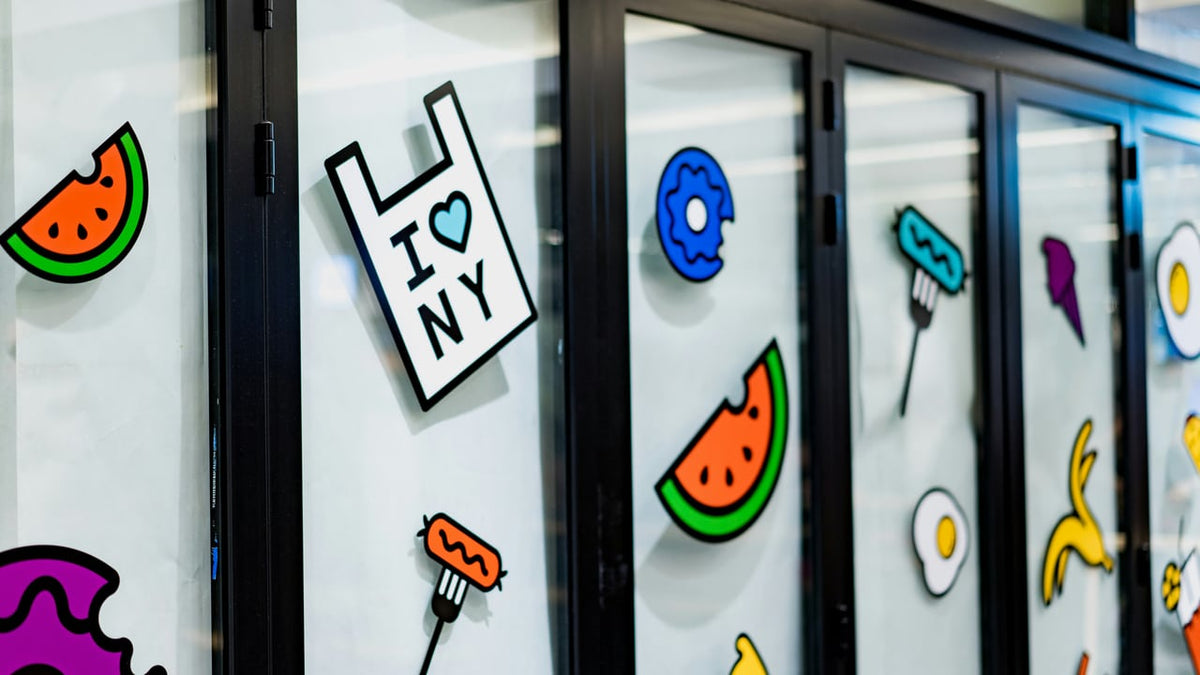
To learn how to design stickers, start with the finished size, keep the artwork and lettering readable, and prepare a file your printing software accepts. Then check the layout and print a sample before making a whole sheet.
A little plant drawing with “KEEP GROWING” underneath is enough for a first design. The challenge is keeping the leaf shapes, letters, and outline clear when that drawing becomes a sticker two inches wide.
1. Choose the Size Before Adding Details
Decide where the sticker will go. A notebook cover leaves more room than a narrow planner box. For a curved object, check the available space on the actual surface.
Cut a scrap of ordinary paper to your proposed size and hold it in place. This gives you a physical reference that zooming in on a screen cannot provide.
For our plant example, start with a two-inch-wide sticker. Adjust it to fit your project. Include the intended border in that finished width.
Pick one main idea. A plant, a short phrase, and a clear silhouette are plenty. If you also want a date, a name, and several decorative stars, consider making a second design rather than shrinking everything.

Keep your original drawing or editable file. You may want a smaller planner version later.
2. Make the Artwork Readable at Its Finished Size
Before choosing export settings, look at what the design asks someone to see. Can they recognize the plant and read the words without studying it?
Give Lettering Enough Room
Start with a short phrase and a font whose letters stay distinct when small. There is no single minimum font size that works for every typeface and printing material.
In the plant design, place “KEEP GROWING” beneath the pot rather than weaving the letters through the leaves. Leave room around the words so the cut edge does not crowd them.
Print a size check on plain paper if you have a suitable printer. Otherwise, use your paper-size reference alongside the preview, then assess the actual sticker sample. A phone's zoom level is not a reliable physical measurement.
Simplify the Outer Shape
Thin stems, isolated dots, and long narrow points can make an outline harder to handle. Consider placing the plant and phrase inside one rounded shape, or widening the connections between delicate parts.
Separate decorative elements may become separate stickers depending on the cutting workflow. Check whether you want one connected design or several individual pieces before arranging the sheet.
Plan the Border and Cut Edge
The border is the visible space around the artwork. The cut line marks the finished edge; it is not necessarily something you should draw into the printable image.
Keep important lettering and details inside that edge. If a print service asks for bleed—artwork extending beyond the trim line—follow its specific template. One service's bleed or border measurements are not universal settings for every home machine.

3. Prepare the Image File for Printing
Keep an editable master, then export a separate copy for the printing workflow.
Choose PNG or JPEG for the Right Reason
A transparent PNG is useful when the artwork needs to sit on an empty background. JPEG does not support transparency, so saving an isolated plant as JPEG introduces a solid background. Adobe's PNG and JPEG comparison explains the difference.
A JPEG can still suit a rectangular photo sticker where the whole background belongs in the design. Choose the format for the result you want, then confirm that the destination software accepts it.
For PixCut S1, Liene's support guidance describes importing a background-free PNG for cutting. Inspect the edges after import, especially around pale leaves or fine lines.
A transparent file background does not make the physical sticker material transparent.
Check Pixels at the Intended Print Size
For small artwork viewed up close, 300 pixels per inch is a useful preparation target, unless your printing workflow specifies otherwise. Adobe's print-resolution guidance recommends checking resolution against the intended print dimensions.
Use this calculation:
Width in inches × target PPI = width in pixels
| Intended design width | Width at 300 PPI |
|---|---|
| 1 inch | 300 pixels |
| 1.5 inches | 450 pixels |
| 2 inches | 600 pixels |
| 3 inches | 900 pixels |
For a square two-inch design, that means 600 × 600 pixels. Include any border already built into the exported artwork within those dimensions.
PPI describes the image's pixel density at a chosen size; it is different from a printer's DPI specification. Changing a small image's resolution label to 300 does not, by itself, add pixels or recover missing detail. Start from the original artwork rather than a screenshot when possible.
4. Arrange the Sheet and Inspect the Cutting Preview
Once the individual sticker works, arrange the copies. The paper's advertised dimensions are not a promise that every part of the sheet is printable.
For example, Liene PixCut S1 uses compatible 4 × 7-inch sticker sheets. Arrange designs inside the usable area shown in the app, leaving the spacing the workflow requires. Do not estimate a guaranteed sticker count from paper dimensions alone.

In the cutting preview, check:
- Whether the outline follows the plant, its surrounding shape, or an unwanted background rectangle.
- Whether the phrase belongs to the same sticker as the illustration.
- Whether neighboring designs and their borders stay separate.
- Whether the final dimensions still match your intended size.
PixCut S1's support instructions describe an adjustable border in the cutting preview. Check the current app controls rather than assuming the artwork can be cut with no border.
Its kiss-cutting leaves the backing intact. Our die-cut versus kiss-cut guide explains that distinction.
5. Check One Sample Before Making More
Use the materials specified for your printer. For PixCut S1, follow the quick start guide and use compatible Liene sticker supplies.
Examine the finished sample at a normal reading distance. Can you read the phrase? Do the leaves remain separate? Is the border comfortable around the whole design?

| What you notice | What to check next |
|---|---|
| Letters merge together | Font choice, spacing, and finished size |
| Artwork looks soft | Original file quality and pixel dimensions |
| A rectangle surrounds the drawing | Exported background and cutting preview |
| Small details peel awkwardly | Narrow shapes and disconnected elements |
| The sticker is the wrong size | Layout dimensions and any scaling applied |
If the preview looks right but the cut misses its outline, consult the machine's troubleshooting guidance.
Change one thing, then make another sample. For our plant, try widening the lettering before changing the size, font, and border together.
If you still need to choose a production method, our guide to making stickers at home covers hand cutting, compatible home printers, and integrated printing and cutting.
FAQs
What App Can I Use to Design Stickers?
Use a drawing or design app that gives you control over size and exports a format your printing software accepts. The Liene Photo app provides the PixCut workflow, with mobile and desktop download options.
Is PNG or JPEG Better for Stickers?
PNG is useful for artwork that needs a transparent background. JPEG can work for photographs or rectangular designs with a background. Confirm the supported format in your chosen printing software.
What Resolution Should a Sticker Design Be?
A useful starting target is 300 PPI at the intended size. A two-inch-wide design would be 600 pixels wide at that target. Follow any specific requirements from your printing service or software.
Do I Need to Draw a Cut Line?
It depends on the workflow. PixCut generates a cutting preview from your design, which you should inspect and adjust as needed. Other cutters or print services may require a separate cutting path or template.
Can I Design Stickers Without a Drawing Tablet?
Yes. You can photograph or scan your own drawing, use a mouse-based design app, or assemble text and simple shapes. Check the exported artwork at its finished size before printing.
Start with One Design You Want to Use
Make the plant sticker readable, check its outline, and print one sample. Once it works, save the editable version and export a copy for repeat prints.
If you want printing and custom cutting in one device, explore Liene PixCut S1 and check its compatible supplies for your project.

Leave a comment
This site is protected by hCaptcha and the hCaptcha Privacy Policy and Terms of Service apply.