Blogs

Explore blogs about photo printers topics for the latest tech, creative ideas, and printing tips. Elevate your printing experience and capture moments.

Explore by Topic

Instant Photo Printing Tips: Enhancing Photo Quality and Preservation

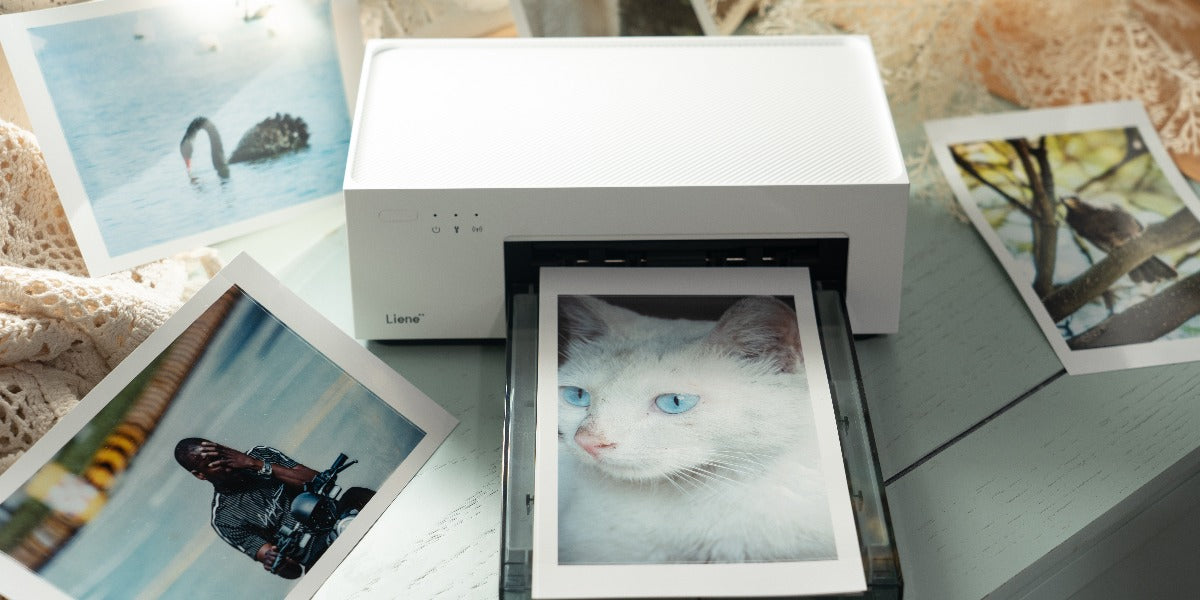
In the ever-evolving landscape of digital photography, where pixels often replace prints, there's a poignant nostalgia for the tactile experience of physical photographs. This resurgence in appreciation for tangible prints is not just a mere throwback; it's a testament to the enduring allure of holding memories in your hands. Instant photo printers, with Liene leading the way in innovation, play a pivotal role in rekindling this tangible joy of capturing and sharing moments.In this comprehensive guide, we will explore essential tips for instant photo printing using Liene instant photo printers, focusing on how to enhance photo quality and ensure the long-term preservation of your precious snapshots. Understanding the Basics of Instant Photo Printing Before delving into the intricacies of enhancing photo quality and preservation, let's take a moment to grasp the fundamentals of instant photo printing. Unlike the traditional photo development process, instant photo printers provide a swift and convenient means to transform digital images into tangible prints. Liene, a reputable brand in this realm, stands out for its commitment to merging cutting-edge technology with the timeless charm of printed photographs. Whether you're a photography enthusiast or someone looking to capture everyday moments, Liene's diverse range of instant photo printers ensures there's a perfect match for everyone, offering features that cater to various preferences and needs. Two Models of Liene Instant Photo Printers Liene's lineup includes the Liene Amber 4x6" Instant Photo Printer and the Liene Pearl K100 2x3" Portable Photo Printer. Liene Amber 4x6 Instant Photo Printer promises superior photo quality, seamless connectivity, and personalized customization—all packed into a compact device. With features like built-in rechargeable batteries, these printers are designed for on-the-go photo printing, ensuring no moment is left undocumented. Pearl 2x3" Portable Photo Printers, adds an extra layer of spontaneity, making it an ideal companion for capturing memories wherever you go. Whether you opt for the Liene Amber for larger 4x6" prints or the Liene Pearl K100 for smaller, pocket-sized photos, both models aim to rekindle the charm of physical photography. Tips for Enhancing Photo Quality Now, let's delve into actionable tips that will elevate the quality of your instant prints, making them stand out and preserving your memories in the best possible way. ● Choose the Right Photo Paper and Cartridges The foundation of a great print lies in the quality of the paper and cartridges used. Liene offers a range of options, such as the Liene Amber 4x6 Instant Photo Printer with 20 photo papers and 1 cartridge or the Liene Pearl K100 2x3" Portable Photo Printer with Zink-Zero Ink printing technology. Each type of paper and cartridge combination may influence color vibrancy, sharpness, and print longevity, so choose according to your preferences and needs. ● Optimize Print Settings Most instant photo printers, including those by Liene, come with adjustable print settings. Experiment with options like color modes, print resolution, and filters to find the combination that best suits your photo. Some printers offer specific modes for classic prints, ID photos, and more, providing flexibility for different occasions. ● Take Advantage of Editing Features Liene's dedicated photo app turns the printing process into a creative adventure. With a variety of editing features, including popular frames, creative filters, and effects, this app becomes your artistic companion. It's not just about printing; it's about transforming your photos into unique pieces of art. So, don't hesitate to explore these features and infuse your prints with a touch of personal flair, making each photo a one-of-a-kind memory to cherish. ● Mind the Dimensions and Resolution Understanding the dimensions and resolution of your photos is crucial for achieving optimal print quality. Ensure that the resolution of your digital image matches the intended print size. Liene's Amber 4x6 Instant Photo Printer, for example, caters to 4" x 6" prints, while the Pearl K100 focuses on 2" x 3" prints. Matching your digital image dimensions to the intended print size helps prevent pixelation and ensures clarity. ● Consider Lighting and Composition Remember that the quality of the original photo impacts the print outcome. Pay attention to lighting and composition when capturing moments. Well-lit, well-composed photos are more likely to translate into stunning prints. Natural light is often preferable, as it brings out the details and colors in your photographs. If you are a travel enthusiast, don’t forget to check the portable photo printers offered by Liene. Tips for Preservation and Longevity Preserving the quality of your instant prints goes beyond the printing process. It's about choosing the right paper size, understanding print technology, and using quality materials. Liene's commitment to providing reliable materials ensures your prints are a testament to vibrant memories. Additionally, storing your prints properly away from sunlight and extreme conditions is vital. Embracing the nostalgia of physical prints while utilizing modern technology for backup ensures your cherished moments remain vivid and lasting, creating a bridge between the past and the future in the world of photography. Let’s take a deep look at these tips to ensure that your memories remain vibrant and intact for years to come. ● Choose the Right Paper Size Liene's instant photo printers offer different paper sizes, such as 4" x 6" and 2" x 3". Consider the purpose and context of your photos when selecting the paper size. Larger prints might be suitable for framing and displaying, while smaller ones are perfect for creating personalized photo albums or sharing with friends. ● Understand Print Technology Different instant photo printers employ various print technologies. Liene's Amber series uses Thermal-Dye Sublimation Technology, ensuring vibrant and detailed prints. The Pearl K100, on the other hand, utilizes Zink-Zero Ink printing technology. Understanding the technology behind your chosen printer can help you appreciate its unique characteristics and make informed decisions about print quality. ● Use Quality Materials Beyond the printer itself, the quality of materials you use plays a role in preserving prints. Ensure that the photo paper and cartridges are of high quality. Liene's commitment to providing a seamless experience includes offering reliable materials for your printing needs. ● Store Prints Properly Once your photos are printed, how you store them matters. Keep them away from direct sunlight, extreme temperatures, and humidity. Consider using photo albums with acid-free pages to prevent yellowing and degradation over time. ● Embrace Technology for Backup While the charm of physical prints is undeniable, consider backing up your digital photos as well. This ensures that even if a physical print is lost or damaged, you have a digital copy for reprinting. FAQs regarding Instant Photo Printing ● Q1: Why should I choose an instant photo printer over traditional printing methods? A1: Instant photo printers offer the convenience of transforming digital images into tangible prints in a matter of seconds. They provide a quick and accessible way to preserve memories without the need for external printing services. ● Q2: How do Liene instant photo printers stand out in the market? A2: Liene instant photo printers, such as the Amber and Pearl series, stand out with features like superior photo quality, seamless connectivity, and personalized customization. The printers cater to different preferences, with options like built-in rechargeable batteries for on-the-go printing. ● Q3: What role does paper size play in the overall printing experience? A3: Paper size determines the physical dimensions of your prints. Larger sizes are suitable for framing, while smaller ones are ideal for creating personalized photo albums or sharing with friends. Liene's printers offer options like 4" x 6" and 2" x 3" to cater to diverse needs. ● Q4: How can I optimize print settings for the best results? A4: Experiment with color modes, print resolution, and filters provided by your instant photo printer. Liene printers, for instance, often come with specific modes for classic prints, ID photos, and more. Adjusting these settings according to your photo and preferences can significantly enhance print quality. ● Q5: What is the significance of understanding print technology? A5: Different instant photo printers use various print technologies. Liene's Amber series employs Thermal-Dye Sublimation Technology for vibrant prints, while the Pearl K100 uses Zink® Zero Ink printing technology. Understanding these technologies helps you appreciate the unique characteristics of your printer and make informed decisions about print quality. Summing Up To wrap it up, making real prints from your digital photos is like making your memories last longer. Liene's printers, with the function of instant photo printing, help you do this in a special way. The tips we talked about aren't hard rules; they're like guides to make your prints look even better and stay safe for a long time.Whether you pick the bigger Amber 4x6 instant printer or the mini portable photo printer Pearl K100 for on-the-go memories, these tips are here to help. It's not just about the steps; it's about making your memories pop with colors and feelings. So, have fun with your instant prints, feel the joy of holding your memories, and turn those moments into treasures you can keep forever.

A Comprehensive Guide For Printing Photos Using Liene 4x6 Photo Printer

In today's digital age, capturing memories on our smartphones has become second nature. However, there's a unique joy in holding a physical photograph. The Liene 4x6 Photo Printer bridges the gap between the digital and physical worlds, offering a convenient and efficient way to print your cherished photos.In this comprehensive guide, we will take you through the process of setting up the printer, preparing for printing, and utilizing different methods to print your 4x6 photos. In addition, we’ll inspire you to infuse your digital memories with the tangible charm of printed photographs. Setting the Stage: Unveiling the Liene 4x6 Photo Printer The unboxing experience of the Liene 4x6 Photo Printer marks the beginning of a journey into the world of instant photography. Each component in the carefully curated package serves a specific purpose, emphasizing the attention to detail in the design and functionality of the device. The user manual becomes your guiding companion, unraveling the printer's features and unraveling its full potential. Let’s first discover the components of this unique Photo printer and see what it has to offer before diving into to guide of using this printer. Unboxing Delight: Contents of the Package Before diving into the printing process, let's familiarize ourselves with the contents of the Liene 4x6 Photo Printer package. Ensuring you have all the components is crucial for a smooth setup and printing experience. ● User Manual The user manual is your key to understanding the features and functionalities of the Liene 4x6 Photo Printer. It provides step-by-step instructions for setup and troubleshooting, making it an essential reference throughout your printing journey. ● 20 pcs of Photo Paper Included in the package are 20 pieces of high-quality photo paper. The inclusion of 20 pieces of high-quality photo paper ensures that you can embark on your printing journey immediately. This paper is specifically designed to produce vibrant and durable prints, ensuring that your memories are preserved in the best possible way. ● Paper Cassette The paper cassette, a seemingly simple component, plays a vital role in the organization and feeding of photo paper, contributing to the overall efficiency of the printing process. The paper cassette is an integral part of the printer, providing a convenient and organized way to load your photo paper. Proper installation of the paper cassette is crucial for smooth printing operations. ● Photo Printer The central component of the package is, of course, the Liene 4x6 Photo Printer itself. Compact and user-friendly, this device brings your digital photos to life in a matter of seconds. ● Ink Cartridge With the ink cartridge at the heart of color reproduction, the Liene 4x6 Photo Printer guarantees vivid and lifelike prints that capture the essence of your digital memories. The ink cartridge is a crucial part of the printing process, providing the necessary colors for your photos. Installing the cartridge correctly is crucial for achieving the best print quality. ● Power Adapter To power up your printer, the package includes a dedicated power adapter. This component ensures a stable and reliable power supply for consistent printing performance. Ready, Set, Print: Essential Preparations Now that you've unpacked your Liene 4x6 Photo Printer, let's walk through the necessary steps to prepare for printing. ● Install Cartridge Begin by installing the ink cartridge into its designated slot in the printer. Consult the user manual for specific instructions, ensuring a secure and proper installation. Properly installed cartridges contribute to the longevity of your printer and the quality of your prints. ● Refill Photo Paper Load the provided photo paper into the paper cassette. Pay close attention to any loading guidelines outlined in the user manual to prevent paper jams and ensure smooth printing operations. The quality of your prints is directly affected by the type and condition of the photo paper used. ● Power Up Connect the power adapter to the designated power socket at the back of the printer. Press the power button for three seconds until the printer enters idle status, indicated by an orange light. This step ensures that the printer is ready for operation. ● Install Paper Cassette Insert the paper cassette into the printer. Ensure that it clicks into place securely, guaranteeing that the paper feed is smooth and free of interruptions during the printing process. ● Connect to Wi-Fi To enable wireless printing capabilities, connect your device to the Liene Photo Printer's Wi-Fi network. Locate the network named "Liene Photo Printer [xxxx]" and enter the default password: 12345678. Once connected, your printer is ready for use, providing the flexibility to print from various devices without the need for direct connections. Mastering the Art of Printing: A Step-by-Step Guide Now that your Liene 4x6 Photo Printer is set up, let's explore the various methods of printing, catering to different preferences and devices. ● 1- Print from App For users who prefer a mobile-centric approach, the Liene Photo App provides a seamless printing experience. Download Liene Photo App: Start by scanning the QR code provided in the user manual to download Liene Photo App to your smartphone. Connect to Printer: With the printer in idle status (indicated by an orange light), open the app. The blue light on the printer indicates a successful connection. Select Printing Mode: Choose between "Classic Photos" or "Print ID Photo," depending on your preference. Choose Photos and Edit: Select the photos you want to print, utilize the app's editing features if desired, and click "Print" to start the printing process. Once you click the Print button, the printer sets on its task and will provide you with high-quality print within a few seconds that will make you delighted. ● 2- Print from Phone (iOS & Android) Printing directly from your smartphone is quick and easy, offering a straightforward way to bring your digital photos to life. Connect to Printer: Ensure your phone is connected to the printer, as indicated by the blue light on the printer. Open Album: Navigate to your photo album on your smartphone. Select Photos: Choose the photos you want to print by tapping on them. Print: Look for the print option, which may vary depending on your phone model and operating system. If you can't find it, refer to the user manual for guidance or search for help within your device's settings. Once all set, click on the print button and you will be astonished by the exceptional quality of print within no time. ● 3- Print from Laptop/PC (Wireless) For those who prefer the convenience of printing from a computer, the Liene Photo Printer supports wireless printing. Note that Windows-based systems require a designated driver for this method. Download Driver: Visit the official website of Liene Life to download the necessary driver. Follow the provided instructions to install the driver on your computer. Connect via Wi-Fi: Connect your laptop or PC to the printer's Wi-Fi network using the default password: 12345678. Select Printer: On your computer, choose "Liene Photo Printer [xxxx]-Wi-Fi" as your designated printer. Print: Select the photos you want to print and initiate the printing process. The wireless connection allows you to print seamlessly without the need for physical cables. ● 4- Print Laptop/PC via Cable For a direct connection between your computer and the Liene 4x6 Photo Printer, a Type-C cable can be used. This method is efficient and ensures a stable and fast connection. Download Driver: Visit the official website of the product to download the required driver for Type-C printing. Follow the provided instructions to install the driver on your computer. Connect via Type-C: Using a Type-C cable, connect the printer to your laptop or PC. Ensure that the connection is secure. Select Printer: On your computer, choose "Liene Photo Printer" as the designated printer for Type-C printing. Print: Once connected, select the photos you want to print and initiate the printing process. This direct connection ensures a fast and reliable printing experience. Conclusion: Your Complete Guide to Picture-Perfect Prints The Liene 4x6 Photo Printer stands as a testament to the evolution of photography, providing a bridge between the digital and physical realms. This comprehensive guide has walked you through the unboxing, setup, and various printing methods available with this compact and user-friendly printer. Whether you choose to print from a mobile app, smartphone, or computer, the Liene Photo Printer offers a versatile and convenient solution for turning your digital memories into tangible keepsakes. Embrace the joy of holding your memories in your hands with the Liene 4x6 Photo Printer!

User Guidance for Liene Portable Photo Printer: Comprehensive Using Tutorial

In the digital age, where memories are often stored in the cloud and screens, the charm of physical photographs can be easily overlooked. Liene presents a solution to this modern dilemma with its Pearl Portable Photo Printer, a device designed to bridge the gap between the digital and the tangible. The Liene Pearl Portable Photo Printer is not just a device; it's a statement. It redefines the way we preserve and share memories in the digital era, bringing back the joy of holding a physical photograph in your hands. In this article, we will explore the features of the Liene Pearl Portable Photo Printer and provide a comprehensive user guide to make your printing experience seamless and enjoyable. Features of Liene Pearl Portable Photo Printer ● Portable and Compact Size The Liene Pearl Portable Photo Printer boasts a sleek and compact design, measuring just 4.9 x 3.3 x 1 inches. Weighing in at a mere 0.4 lbs, it's a lightweight companion for capturing and printing memories on the go. Whether you're traveling, attending an event, or simply at home, this mini printer fits effortlessly into your lifestyle. ● Dust/Water Resistant Zink Paper Liene understands that printed memories are meant to be cherished, and the Zink photo paper used by the Pearl Portable Photo Printer reflects this sentiment. The photos produced are not only resistant to dust and water but also smudge-resistant. This ensures that your captured moments remain pristine, standing the test of time. ● App with Multiple-Customized Effects The accompanying Liene app opens up a world of creative possibilities. With various customizable effects, including frames, color filters, and enhanced modes, you can add a personal touch to your photos. The app serves as a creative hub, allowing you to tailor each print to your unique style and preferences. ● Stunning Picture Quality The Liene Pearl Portable Photo Printer delivers exceptional picture quality with a resolution of 300 DPI. This ensures that your prints capture every detail and nuance, resulting in sharp, vivid images that mirror the beauty of your original memories. ● Bluetooth 5.0 Ultra Fast Printing Connectivity is key, and Liene has integrated Bluetooth 5.0 technology into the Pearl Portable Photo Printer for ultra-fast and reliable printing. This feature ensures a seamless connection between your device and the printer, making the entire printing process quick and efficient. What Does the Package Include? The Liene Pearl Portable Photo Printer comes in two variants: 1) 2x3" Printer with 50 pcs Zink Photo Papers Package box Portable printer User manual Zink photo paper x50 Type-C cable 2) 2x3" Printer with 5 pcs Zink Photo Papers Package box Portable printer User manual Zink Photo Paper x 5 Type-C cable This comprehensive package ensures that you have everything you need to start printing and preserving your memories. Step-By-Step Guide to Use the Mini Printer Before we delve into the step-by-step guide for using the Liene Pearl Portable Photo Printer, it's crucial to appreciate the broader significance of mini printers in our daily lives. These compact printers have revolutionized the way we capture and share moments, offering unparalleled convenience. Now, let's navigate through a comprehensive step-by-step guide to maximize the potential of your Liene Pearl Portable Photo Printer and bring your digital memories to life. ● Step 1: Install the Photo Paper The process of installing the Zink paper is straightforward. The Liene Pearl Portable Photo Printer boasts a compact design with dimensions of 4.9 x 3.3 x 1" and a lightweight build of 0.4 lbs, making it incredibly portable for on-the-go printing. To begin the printing process, slide open the paper compartment and insert the Zink Paper with the glossy side facing upward. It's crucial to ensure that the smart sheet is positioned at the bottom for optimal printing quality. The printer has a capacity for up to 10 sheets of Zink Paper, allowing for multiple prints without frequent reloading. Once the paper is securely in place, simply slide to close the paper compartment, and you're ready to bring your digital memories to life with the Liene Pearl Portable Photo Printer. ● Step 2: Download Liene Photo App Depending on your device, follow the instructions given below to simplify the process. On iOS Devices: To initiate the seamless use of the Liene Pearl Portable Photo Printer on iOS devices, locate the "Liene Photo" app in the App Store or effortlessly download it by scanning the provided code within the user manual. On Android Devices: Similarly, for Android devices, access the app by searching "Liene Photo" in the Google Store or scan the designated code in the user manual. Register an Account: Once the app is installed, proceed to register your account by selecting your country and region, consenting to the Terms of Service and Privacy Policy, and signing up through email, Apple ID, or Google ID. This streamlined process ensures a quick and efficient setup, paving the way for a hassle-free printing experience with your Liene Pearl Portable Photo Printer. ● Step 3: Connect the Printer Connecting the Liene Pearl Portable Photo Printer is a breeze. To start using the Liene Pearl Portable Photo Printer, first, ensure that your phone's Bluetooth is turned on. Keep in mind that only one device can be connected at a time. Add the printer to your Bluetooth settings by selecting "Pearl K 100 Portable Photo Printer." Once paired, long-press the power button on the printer for 3 seconds and wait for the light to turn to orange blinking, indicating a successful connection. This simple step-by-step process establishes a seamless link between your phone and the printer, allowing you to effortlessly print your cherished memories with the Liene Pearl Portable Photo Printer. ● Step 4: Print Photos Printing with the Liene Pearl Portable Photo Printer is a delightful experience. To unleash the full potential of your Liene Pearl Portable Photo Printer, start by selecting the desired photo through the Liene app, as printing is exclusively facilitated through this platform. Within the app, delve into the diverse options it offers—explore the four photo frame modes to match your preferred style. Inject a creative flair by experimenting with the eight color filter modes, allowing you to customize the aesthetic appeal of your prints. For those with specific color preferences, the enhanced mode enables personalized color grading. Once satisfied with your choices, simply press start, and witness the transformation of your digital memories into tangible prints, creating a unique and cherished representation of your special moments. Benefits of Using Liene Mini Photo Printer ● Fast Photo Printing The Liene Pearl Portable Photo Printer is not only fast in printing but also energy-efficient. With the ability to produce a print in just 43 seconds, you can capture and share your memories almost instantly. Additionally, a fully charged printer can produce up to 30 prints, ensuring that you have ample power for your printing needs. ● Amazing Zink Zero Ink Tech The  Zink technology employed by Liene eliminates the need for traditional ink cartridges. This not only simplifies the printing process but also reduces costs associated with ink replacement. The result is a hassle-free and cost-effective printing solution. ● Cost Effective The combination of Zink Zero Ink technology and affordable paper refills makes the Liene Pearl Portable Photo Printer a low-cost printing solution. Enjoy high-quality prints without breaking the bank, making it an economical choice for anyone who values tangible memories. ● Clear Image The 300 DPI resolution ensures that each print is crystal clear and detailed. Whether it's a landscape, portrait, or group photo, the Liene Pearl Portable Photo Printer faithfully reproduces the essence of your captured moments with clarity and precision. ● 2x3” Adhesive Photo Paper The 2x3" adhesive photo paper adds versatility to your prints. Stick your photos anywhere – in diaries, scrapbooks, or on personal items. The adhesive backing allows you to personalize your surroundings with your favorite memories. Conclusion: Your Roadmap to Stunning Prints In a world dominated by digital screens, the Liene Pearl Portable Photo Printer emerges as a beacon, bringing back the joy of tangible memories. Its portable design, coupled with features like water-resistant prints, customizable effects, and Bluetooth 5.0 connectivity, make it a must-have for those who appreciate the value of physical photographs. Following the user guide provided in this article ensures that you can make the most of your Liene Pearl Portable Photo Printer. From the simple installation of Zink paper to the creative customization options in the Liene app, every step is designed to enhance your printing experience.

How to Set up and Use the Liene Desktop Photo Printer

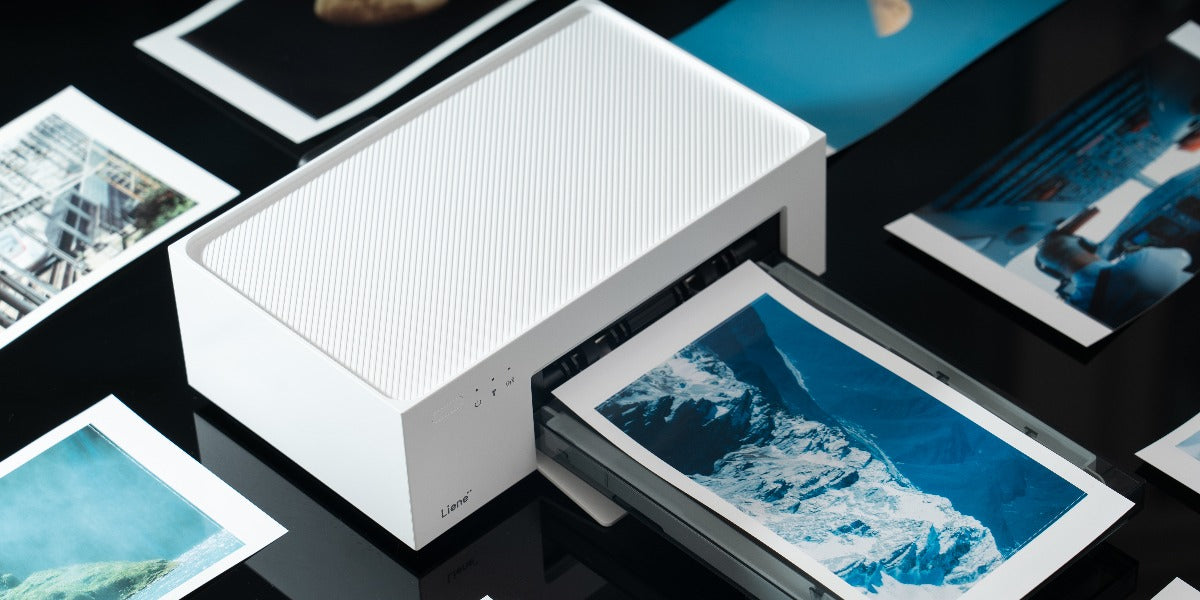
Liene Desktop Printer is very easy to set up and use compared to traditional printers. Let’s cut to the chase, let me show you how to set up and use a Liene Desktop Printer. Load photo paper and ink cartridge into the Liene Desktop Printer First, open the Liene Desktop Printer side door, insert a new ink cartridge until the lock is in place, and close the side door. Then you fill in the photo paper. Open the Liene Desktop Printer paper cassette cover along the top seam, load photo paper in the cassette with the glossy side face-up, and close the cassette cover. The maximum capacity of the cassette is 20 sheets of photo paper, so make sure you do not load too many sheets. While loading, you need to keep your hand off the area within the crop marks of a photo paper when loading. Next, you install the paper cassette. To install the paper cassette into your device, you should undraw the paper cassette holder, rotate it down 180° to the bottom and insert it into the printer. Now your printer is ready to run. Connect the Liene Desktop Printer with your devices and print Liene Desktop Printer has five printing methods, let's talk about how to connect the devices to each of these five methods 1-Print from the iOS Device Liene Desktop Printer allows you to print directly from your iPhone album without any other app assistance. Make sure that the device is connected to the printer Wi-Fi hotspot, and the Wi-Fi hotspot indicator lights on in blue, confirm that you agree to use this network. Open the album and select the photos, then select the printer, adjust the printing parameters, and print.  2-Print from Android Devices Just as convenient as iOS, with Android devices, you can also print photos directly from your phone album. Make sure that the device is connected to the printer Wi-Fi hotspot, and the Wi-Fi hotspot indicator lights on in blue, confirm that you agree to use this network. Open the album and select the photos, then select the printer, adjust the printing parameters, and print. 3-Print via USB from a computer Click here to download the driver for Photo Printer Series and install it. Connect the printer to the computer using a USB cable. Select the photos, click "Print", and select "Liene Photo Printer". 4-Print via Wi-Fi from a computer Click here to download the driver for Liene Photo Printer Series and install it. After the computer has successfully connected to the printer Wi-Fi hotspot, follow the steps in the table below to set the printer connection. For Windows 10, click "Settings">"Devices">"Printers and Scanners">"Add a Printer or Scanner", and select "Liene Photo Printer [xxxx]-WiFi". After successful connection, select the photos, click "Print", and select "Liene Photo Printer[xxxx]-Wi-Fi".  5-Print with the "Liene Photo" APP Of course, you can also print through the Liene app, which allows for basic photo editing features and several filters, as well as the ability to print ID photos,  and adjust print sizes.

3 / 3