Blogs

Explore blogs about photo printers topics for the latest tech, creative ideas, and printing tips. Elevate your printing experience and capture moments.

Explore by Topic

Cricut Alternatives in 2026: Stickers, Vinyl, and Paper Crafts

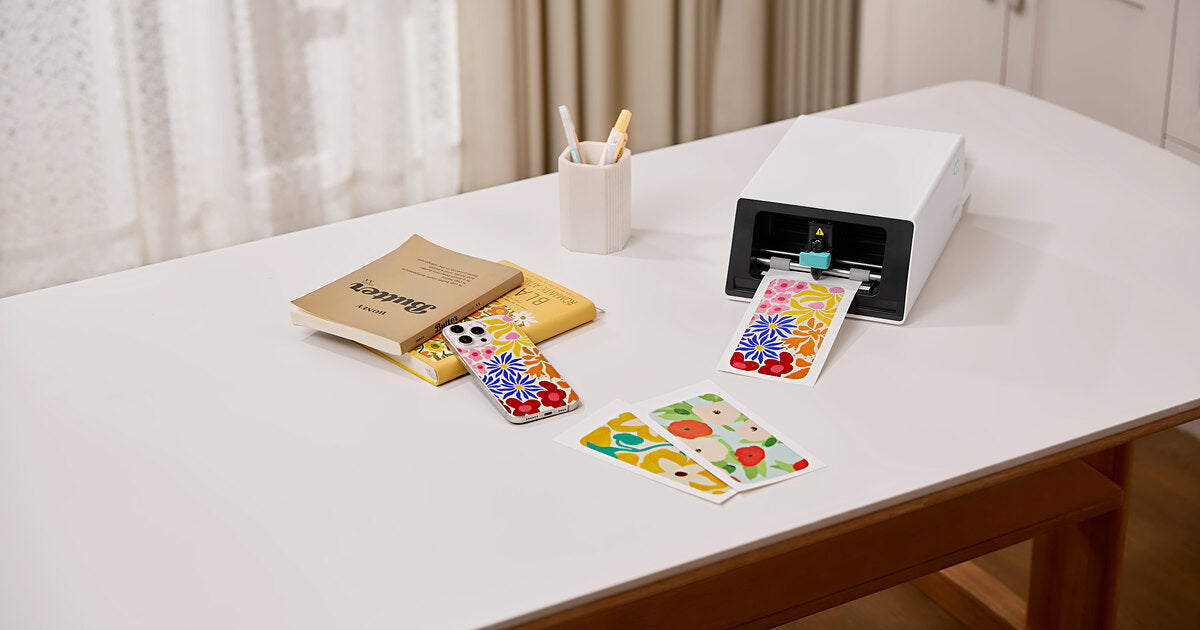
A Cricut alternative depends on the projects you want to make. For custom photo stickers on compatible Liene media, consider Liene PixCut S1. For vinyl and mixed crafts, look at Silhouette Cameo 5α; for scanned drawings and paper projects, Brother ScanNCut DX SDX125E offers a different way to work. These devices serve different purposes and are not interchangeable across all materials and projects. Start with the thing you want to finish. A sheet of pet stickers and iron-on lettering for a tote bag ask very different things of the equipment. This guide is published by Liene, the brand behind PixCut S1. References to other manufacturers are for product identification and comparison. Choose Your Cricut Alternative by Project Find your next project in the table, then check what you would need to make it. Choose a workflow for the project you want to make Your project Route to consider Separate printer? Main limitation Custom photo stickers and labels PixCut S1: design, print, laminate, and cut No Dedicated compatible Liene media; not a general-purpose material cutter Vinyl lettering and iron-on designs Cameo 5α: prepare cut paths, cut material, weed, and apply Not for plain colored vinyl; yes for printed artwork Correct blade and material settings; heat application for iron-on Paper crafts and scanned drawings ScanNCut DX SDX125E: scan or select a design, then cut Not for cutting existing artwork; yes to print new artwork Mat, blade, material, and scan contrast affect the result A few simple stickers Existing printer, compatible sticker paper, scissors or trimmer Use the printer you own Manual cutting and material-dependent finishing A larger outsourced batch Print service: submit artwork, approve a proof, order No home printer needed Order quantities, finishing options, and delivery time For a broader explanation of these workflows, see sticker printers versus cutting machines. Decorative stickers illustrate possible project ideas; this photograph does not identify the equipment used to make them. Which Cricut Are You Replacing? An Explore, Maker, or Joy-family cutting machine is a different starting point from a StickerPix printer. On supported cutters, Print Then Cut uses a separate compatible printer for the artwork before the cutter follows its outline. The original Cricut Joy does not support Print Then Cut. Cricut Joy Xtra and Cricut Joy 2 support it, using a separate compatible printer to print the artwork. Print area, supported materials, and preparation steps vary by model, so follow the instructions for your specific machine. Cricut also offers StickerPix Print, which prints photos and uses pre-cut sticker sheets, and StickerPix Print + Cut, which prints and cuts custom-shaped stickers. See Cricut’s introduction to StickerPix for the differences between these products and Cricut cutting machines. For a Cricut Joy Xtra alternative, decide whether you still need vinyl and cards alongside stickers. That answer changes which category you should shop. For Custom Stickers: Liene PixCut S1 If your projects are pet stickers, journal decorations, or small gift labels, a dedicated sticker printer and cutter can cover the printing and cutting in one device. The Liene PixCut S1 uses dye-sublimation printing with a protective lamination layer and automatic contour cutting. Its kiss-cut stickers peel from an intact backing sheet. Liene PixCut S1 with a selection of printed sticker sheets and photos. The Liene Photo app provides the design-to-print workflow, with mobile and desktop options. Import your artwork, arrange the sheet, and check the cutting preview. PixCut S1 is designed for photo printing and photo-sticker creation using compatible Liene media, including dedicated 4×7-inch sticker sheets. It is not a general-purpose material cutter or a full-featured replacement for a Cricut cutting machine. It does not replace equipment for cutting ordinary adhesive-vinyl rolls, heat-transfer vinyl, or thick cardstock. For other sticker formats and equipment choices, browse our sticker printer buying guide. For Vinyl and Mixed Crafts: A General-Purpose Cutter If the craft table moves from a design on a shirt to a decoration on paper to a vinyl label on a jar, examine the general cutters. The Silhouette Cameo 5α is an example in Silhouette’s 12-inch cutting category. Select a blade, mat, and settings suited to the material. Iron-on projects also need suitable heat-application equipment. It does not print your artwork. For full-color stickers, Silhouette’s Print & Cut workflow sends the design to a separate printer, then uses registration marks to align the cut. You will be moving the printed sheet from the printer to the cutter. Silhouette Studio runs on Windows and Mac; Studio itself does not run on phones. Silhouette also offers Silhouette GO for iOS and Android, plus Silhouette Web for browser-based design. These tools have different capabilities and requirements. Check the official software information for the editing features, file formats, machine compatibility, and cutting workflow you need. For Paper Crafts and Scanned Designs: A Scan-and-Cut Route A scanner is useful when the design starts on paper: a hand-drawn flower, stamped image, or existing shape you want to cut around. The Brother ScanNCut DX SDX125E combines a built-in scanner with touchscreen editing and standalone cutting. You can handle basic scanning and cutting on the machine without a computer. It does not print new color artwork. Brother also offers CanvasWorkspace for Windows and Mac for creating and editing cutting data. Its current documentation says the web version has been discontinued. Look up the specifications rather than assuming that all machines have the same features. Brother recommends a test cut to check whether the material and settings are suitable. If your pencil line or stamp is not clear, check the outline detection before cutting. For Occasional Projects: Tools You Already Own or a Print Service For six gift labels, try what you already have first. If you already own a compatible printer, try sticker paper approved for it and cut simple shapes by hand. Allow for any drying or finishing required by the paper manufacturer. For a larger order, request a printing quotation based on the finished dimensions, quantity, material, and finish. Also allow time for shipping and proof approval. Outsourcing may suit the project, although it is not necessarily less expensive. Our PixCut S1, Cricut Maker 5, and Canon SELPHY comparison explains why a photo printer, cutter, and integrated sticker machine serve different jobs. Compare the Whole Setup Put one actual project in the budget. Use the same quantity, finished dimensions, and required materials for each option. Illustrative equipment and workflow comparison, not a physical performance test or cost ranking. Sheet yield depends on the usable layout. Hardware, Media, Ink or Ribbon, and Waste For printed stickers, budget for a printer, a cutter if it is a separate machine, ink or ribbon, compatible paper, and any additional protective finish your project requires. Replacement blades and cutting mats may also be needed, depending on the machine. Divide material spending by the number of usable stickers, not the number you hoped to fit. Keep hardware and labor separate so you can see what each contributes. Compare current offers in the same currency and market; a cutter-only box is not equivalent to a bundle with printing supplies. Software and Optional Subscriptions Cricut Design Space is free to use with your own uploaded images and system fonts. Cricut Access adds paid content and features; it is not a requirement for every project. Silhouette Studio Basic is free, with optional one-time edition upgrades. Opening SVG files in Studio requires Designer Edition or above. The Design Store subscription is a separate content purchase option. Check the exact feature you need. A free download does not mean every asset, import format, or editing tool is included. Print Area, Cut Type, and Material Limits Check the usable layout area in the software. Registration marks, margins, and spacing reduce what fits on a sheet. Also decide whether you want stickers that peel from a backing sheet or individually separated pieces. Kiss-cutting, cutting through the backing, and cutting vinyl lettering are different jobs. A printed sticker’s appearance does not tell you whether it will suit outdoor use or repeated washing. Check the media, blade, and finishing requirements for each project before choosing a machine. When Keeping Your Cricut Makes More Sense Keep using an existing cutter if it meets your needs for cards, vinyl, and other projects. Changing platforms means learning a new system and checking which materials, accessories, and files you can continue to use. If subscriptions are the concern, review which paid features you actually use before replacing the hardware. For some crafters, using their own designs in free software solves the problem. A dedicated sticker printer can also sit alongside an existing cutter. You do not have to ask one machine to handle every project. FAQ What Can Replace a Cricut? The answer depends on the Cricut model and the projects you want to make. For general cutting, consider the capabilities of a machine such as Cameo 5α or ScanNCut DX SDX125E. For dedicated photo stickers on compatible Liene media, consider PixCut S1. It does not replace the full range of functions offered by Cricut cutting machines. Simple projects may only need hand tools or a print service. Which Cricut Alternative Suits Stickers? For photo stickers on compatible Liene media, PixCut S1 combines printing and contour cutting. A separate printer and compatible cutter offer another workflow. Check the supported materials, usable print area, and cutting requirements for the specific equipment you are considering. Does a Cricut Alternative Need a Separate Printer? Cutting machines without printing functionality need a separate printer for newly printed color artwork. Cutting colored vinyl or existing paper designs does not require printing. PixCut S1 includes printing, while ScanNCut’s scanner reads artwork without printing it. Can PixCut S1 Cut Vinyl? It is designed for its supported photo and sticker media, not general-purpose adhesive-vinyl or heat-transfer-vinyl cutting. Use an appropriately equipped cutter for those projects. Do I Need a Paid Subscription? Not every workflow requires a paid subscription. Free software can handle some projects, while particular assets, file formats, or editing features may require a paid purchase or software upgrade. Check the requirements for your intended project. Choose for Your Next Project Pick the project you want to make next week. Open its artwork, check its dimensions, and list the materials it needs. That is a more useful shopping list than a machine’s longest feature list. If photo stickers and custom labels are the work you want to bring home, explore PixCut S1 and its compatible supplies. Sources and Product Information Third-party product specifications and software information in this guide are based on publicly available product pages and support documentation from the respective manufacturers, linked throughout the article. This guide compares published features and workflows; it does not report hands-on comparative performance testing. Product features, software capabilities, compatibility, and availability may change and may vary by region. Check the relevant manufacturer’s current documentation for your specific model, software version, and market before purchasing. Trademark Notice Cricut, Silhouette, Brother, Canon, and other third-party trademarks mentioned in this article are the property of their respective owners. Brand and product names are used for identification and comparison only. Their use does not imply that Liene is affiliated with, authorized by, sponsored by, or endorsed by the respective trademark owners.

Best Sticker Printers in 2026: Full Buying Guide

For home users who want custom-shaped, laminated stickers from one device, our pick for the best sticker printer is the Liene PixCut S1, currently starting at $279.99. Choose an inkjet-and-cutter setup for larger sheets and mixed crafting, or a battery-powered Canon SELPHY QX20 for small photo stickers on the go. This guide is published by Liene, the maker of PixCut S1. Recommendations are based on published specifications and suitability for different projects. Quick Picks: Best Sticker Printers by Use Best For Product Printing Cutting App & Cost Approx. Price Best overall for home sticker making and custom-shaped stickers Liene PixCut S1 300 DPI dye-sublimation with protective overcoat, all in the machine Automatic contour kiss-cutting around individual designs Liene Photo app for phone, tablet, Windows and Mac; free From $279.99, Starter Kit All-in-one alternative for Design Space users Cricut StickerPix Print + Cut 300 DPI dye-sublimation with lamination Custom-shape kiss-cutting Design Space required; Cricut Access optional, from $9.99/month in the US €279.99, Essential Bundle, Ireland For sticker businesses needing larger sheets Epson EcoTank ET-2850 + a compatible cutting machine Refillable-tank inkjet; compatible sticker media required Separate cutter required Epson Smart Panel, free; your cutter's software for cutting (Design Space for a Cricut Explore 5) $349.99 printer list price, plus cutter and supplies Best portable photo sticker printer Canon SELPHY QX20 Dye-sublimation on square or card-size adhesive media No automatic cutting SELPHY Photo Layout, free From $189.99 Best photo-first printer with sticker options Canon SELPHY CP1500 Dye-sublimation; standard photos and compatible fixed-format sticker media No automatic cutting SELPHY Photo Layout, free About $179.99, plus sticker media and card-size cassette Best for pre-cut stickers in Design Space Cricut StickerPix Print 300 DPI dye-sublimation with lamination No cutter; uses pre-cut sticker sheets Design Space required; Cricut Access optional, from $9.99/month in the US €179.99, Essential Bundle, Ireland Best budget route if you own a printer Existing color inkjet + compatible sticker paper Depends on your printer and paper Scissors or a paper trimmer Your printer's own software or any design app you already use Sticker paper and finishing supplies only Prices checked October 2, 2026; app and subscription details checked October 8, 2026. US prices are in USD; the two StickerPix prices are Irish listings in euros. Bundles, taxes, availability, and promotions vary. These figures are not a direct price comparison across markets. See current Liene pricing, StickerPix Print + Cut pricing, StickerPix Print pricing, Epson pricing, Canon pricing, and Cricut Access pricing. The PixCut S1 is our overall pick for home sticker making because it prints, finishes, and cuts custom-shaped stickers in one machine. Larger sheets, mixed crafting materials, and battery-powered printing call for different equipment, which is why the alternatives below serve different purposes. Which Sticker Printing Setup Do You Need? Most home sticker setups follow one of three routes: an all-in-one printer and cutter, a printer paired with a separate cutter, or a printer with manual cutting. Pre-cut sticker printers are another option when fixed shapes suit your designs. A Cricut Explore or Maker is a cutting machine and needs a separate printer for printed stickers. Cricut StickerPix is a different product family: both models print, and StickerPix Print + Cut also cuts. Check the complete model name before buying. For a closer look at separate printers and cutters, read Sticker Printer vs Cutting Machine. What to Look For in a Sticker Maker Machine Start with the output you need. A rectangular photo sticker, a mixed planner sheet, and an individually trimmed logo sticker can require different equipment. Cut type and shape. A kiss-cut slices the sticker layer while keeping the backing intact. A die-cut goes through the backing as well. A pre-cut sheet fixes the available shapes before you print. Our die-cut vs. kiss-cut guide explains how those formats affect presentation and peeling. Usable print area. Compare the printable area, rather than just the paper dimensions. Larger sheets may accommodate more designs, but a separate cutter's registration marks also take up space. Finish. A built-in protective coating saves a separate finishing step. For inkjet stickers, durability depends on the ink, compatible media, and any laminate you apply. Test the finished combination before promising customers water resistance. Running cost. Count paper, ink or dye ribbon, finishing materials, and wasted sheets. Divide by the number of usable stickers your layout produces. A per-sheet figure alone cannot tell you the cost of each design. Software and workspace. Check device compatibility, which features require a subscription, and how much room the complete setup needs. Allow space for paper movement as well as the machine itself. Route 1: The All-in-One Sticker Printer and Cutter Liene PixCut S1: Best Overall for Home Sticker Making The PixCut S1 suits people whose main projects are photo stickers, labels, and custom-shaped sticker sheets. It prints, applies a protective overcoat, and kiss-cuts around designs inside one machine, removing the transfer from printer to cutting mat. The Starter Kit currently starts at $279.99 and includes 18 sticker sheets and 18 photo sheets. Sticker paper is 4 × 7 inches; photo paper is 4 × 6 inches. The app provides design tools and background removal for preparing custom outlines. View the PixCut S1. Liene's specifications list 300 × 300 DPI dye-sublimation and a 59-second printing speed. That figure describes printing only. Cutting adds time according to the design, so it is not the total time for a finished, cut sticker sheet. See PixCut S1 specifications. Its main limit is format: this is a desktop sticker and photo system using dedicated media. Choose a separate cutting machine if your projects also require adhesive vinyl, iron-on, or cardstock. Kiss-cut output keeps individual designs on their backing sheet until you are ready to use them. You can peel a sticker for a journal, gift label, or other project while keeping the remaining designs together. Cricut StickerPix Print + Cut: An All-in-One Alternative Cricut StickerPix Print + Cut is a direct alternative for buyers who prefer working in Design Space. It prints, laminates, and cuts custom outlines, with 4 × 7-inch sticker sheets and 4 × 6-inch photo paper. Cricut specifies 300 DPI dye-sublimation and kiss-cut output, leaving the backing intact. The Essential Bundle is listed at €279.99 in Ireland. Design Space is required; Cricut Access is optional, although certain software features and the full content library require payment. Consider the tools you plan to use when comparing ongoing costs. See StickerPix Print + Cut details. This is a sticker-focused machine, separate from Cricut's general-purpose cutters. It offers an integrated workflow for people who want custom-cut stickers within the Cricut software ecosystem. Route 2: An Inkjet Printer Plus a Cutting Machine Epson EcoTank ET-2850: For Businesses That Need Larger Sheets An inkjet-and-cutter setup is worth considering when larger sheets and material choice matter more than keeping everything in one device. The Epson EcoTank ET-2850 uses refillable ink tanks and also handles everyday printing, scanning, and copying. Epson lists the printer at $349.99 before promotions. See Epson ET-2850 product details. It does not cut or laminate stickers. You need inkjet-compatible adhesive media within its feed specifications, plus a cutter for automated shapes and finishing materials where your product requires them. Test the exact paper-and-ink combination before building a product line around it. For cutting, the Cricut Explore 5 supports Print Then Cut and starts at $199 according to Cricut's published pricing. It also handles projects using other compatible crafting materials. That makes the pairing useful for a shop selling stickers alongside cards or vinyl projects. See Explore 5 capabilities and its starting price. The tradeoff is handling: printing, any separate finishing, and cutting happen in distinct stages. Budget for the complete setup, including mats, replacement blades, media, and the time you spend moving sheets between steps. If your business mainly sells small personalized kiss-cut sheets, an all-in-one may be a better fit. Our guide to choosing a sticker printing machine for your small business looks more closely at supplies, workspace, and printing to order. Route 3: An Inkjet and Scissors Best Budget Choice: Use the Printer You Already Own For an occasional gift label or a first sheet of planner stickers, start with a compatible color inkjet, adhesive paper, and scissors. A paper trimmer helps with straight-sided labels. This route lets you test designs without buying another machine. It also reveals whether you enjoy making stickers enough to justify an upgrade. Check your printer's media requirements and choose adhesive paper made for its printing technology. Manual cutting becomes less convenient when designs have detailed outlines or you need many identical pieces. If that becomes the bottleneck, compare a separate cutter with an all-in-one before deciding whether you need a new printer. A craft project can combine printed images, cut-out lettering, and stickers without requiring every element to have a custom machine-cut outline. Best Portable Sticker Printer: Canon SELPHY QX20 The Canon SELPHY QX20 is a practical choice for printing small adhesive-backed photos away from a desk. It weighs about one pound, has a built-in battery, and charges over USB-C. Canon lists it from $189.99. It uses dye-sublimation and supports square and card-size sticker media. There is no cutter, so your photo takes the format of the adhesive sheet. That suits travel journals, scrapbooks, and sharing photo stickers at gatherings. See Canon QX20 specifications. Choose it for battery-powered photo printing when fixed shapes are enough. A compact mains-powered printer can be easy to transport too, but it still needs a suitable power source. Best Photo-First Printer with Sticker Options: Canon SELPHY CP1500 If you mainly want standard photo prints and occasionally want stickers, consider the Canon SELPHY CP1500. Canon's current catalog lists it around $179.99. It prints 4 × 6-inch photos and supports compatible fixed-format sticker media, but cannot cut custom outlines. Budget for the appropriate sticker media and card-size paper cassette separately. The supplied postcard-size cassette does not cover every sticker format. See Canon CP1500 details and compatible accessories. For a household printing albums, gifts, and occasional adhesive photos, that versatility may matter more than custom cutting. For a sticker-focused collection, compare the available sticker formats carefully before choosing it. Cricut StickerPix Print: For Pre-Cut Stickers and Labels StickerPix Print is the lower-priced model in Cricut's sticker printer family, listed at €179.99 for the Essential Bundle in Ireland. It prints and laminates onto pre-cut sticker sheets. It does not cut around your artwork. That makes it suitable for photos and labels in preset shapes. If you want an outline that follows a pet, flower, or illustrated character, look at StickerPix Print + Cut instead. See StickerPix Print pricing and model specifications. Cricut sells dedicated refill sets for each model. The Print and Print + Cut materials are not cross-compatible, so check the full model name when ordering. Read Cricut's material compatibility guidance. What Does a Finished Sticker Cost? For the PixCut S1, the currently listed refill pack costs $42.99 for 72 sticker sheets with two cartridges. That works out to approximately $0.60 per sheet. View the current refill pack. As an illustration, a layout yielding three usable stickers would cost about $0.20 per sticker in refill supplies. A layout yielding six would cost about $0.10 each. Those examples exclude the machine, waste, packaging, and your labor; they are not a fixed cost for every sticker. For inkjet setups, add paper, ink, any laminate, and cutter consumables. For StickerPix, use the price and sheet count of the refill available in your region. Compare refill prices for the same market and calculate the cost per usable sticker. A lower machine price alone does not establish a lower running cost. If you plan to sell stickers, print a sample order before setting your prices. Record the supplies used, any rejected sheets, and the time needed to finish and package the order. That gives you a more useful cost estimate than the printer's purchase price alone. Frequently Asked Questions What is the best sticker printer for beginners? For beginners who want custom-shaped stickers with fewer handling steps, our recommendation is the PixCut S1. If you already own a compatible inkjet and want to try simple labels first, adhesive paper and manual cutting are the cheaper starting point. Does every sticker printer cut stickers? No. PixCut S1 and Cricut StickerPix Print + Cut include automatic cutting. StickerPix Print and the Canon SELPHY models discussed here print onto adhesive media without cutting custom outlines. Can a Cricut print stickers? The answer depends on the model. Cricut Explore and Maker machines cut and need a separate printer for printed stickers. Cricut StickerPix Print prints and laminates; StickerPix Print + Cut prints, laminates, and cuts. Which sticker maker machine is best for a small business? Match it to your product format. A larger-sheet inkjet-and-cutter setup suits businesses needing varied media and mixed crafting. A desktop all-in-one suits small personalized kiss-cut sheets. Price a sample order using your actual layout, waste, and handling time before buying. Are home-printed stickers waterproof? Durability depends on the complete printing system. Liene describes PixCut S1 stickers as waterproof; Cricut describes StickerPix prints as water-resistant. Inkjet results vary with ink, media, and finishing. Those claims do not automatically establish dishwasher safety or suitability for prolonged outdoor use. See Liene product information and Cricut finish information. Can these machines produce individually die-cut stickers? StickerPix Print + Cut specifies kiss-cutting, and the PixCut S1 recommendation here is for kiss-cut sheets. If your product needs the backing cut into separate shapes as well, choose equipment and media that explicitly support that output. How fast does the PixCut S1 print? Liene lists a printing speed of 59 seconds. This is a printing specification, not the total time for design preparation, printing, and cutting. See official specifications. Choose the Printer for the Stickers You Plan to Make Start with one representative design: its dimensions, intended shape, finish, and quantity. Use that project to compare the finished output and the supplies each setup needs. For custom-shaped home stickers from one device, the PixCut S1 brings printing, protective finishing, and contour cutting into one desktop setup. Explore the Liene PixCut S1 and available bundles. If your priority is larger sheets, mixed crafting, or battery-powered photo printing, compare the alternatives above against those requirements. The right printer is the one that produces the stickers you want in a format you can use.

Choosing a Sticker Printing Machine for Your Small Business

Somewhere between the first "can I buy that?" at a market table and the fiftieth online order, sticker making stops being a hobby with byproducts and turns into a business with costs. The machine question changes at that point too. A hobbyist can shrug off a wasted sheet or a fussy workflow. A business feels both, week after week, in margin and in evenings. So this guide works through the choice the way a seller has to: what one sticker costs to make, what the consumables add up to over a season, how much desk the setup claims, and where each route stops making sense. What Changes When You Start Selling Three things, mainly. Volume goes up, so the cost of a single sticker matters in a way it never did when you were decorating your own planner. Consistency starts to matter, because a customer who reorders expects the second batch to match the first. And waste turns into a line item: a crooked cut or a smudged sheet used to be a shrug, and now it is materials you paid for producing nothing you can sell. None of that requires industrial equipment. Most sticker businesses at the market-table and online-shop stage run on the same desktop machines hobbyists use. It just means the buying decision leans harder on the numbers, so that is where to start. Most sticker businesses start exactly here: a planner, a pile of designs, and the first sheets other people ask to buy. Price One Sticker Before You Price Any Machine On the Liene PixCut S1, the math is short. Refills run $42.99 for 72 sheets with the ink cartridges in the pack, which lands near $0.60 a sheet, laminated and cut. How many stickers a sheet becomes depends on how densely you pack it, and packing sheets densely is a skill sellers pick up fast. The two-machine route prices out as a stack instead: sticker paper at $23.99 to $29.99 for 50 sheets at Cricut's own prices, inkjet ink on top, laminate sheets where waterproofing matters, and $9.99 a month for Cricut Access if you want its sticker tool doing layout. None of those numbers is scary on its own. The bookkeeping is the difference: one route is a single refill SKU you reorder when the box runs low, the other is four or five supplies that run out on their own schedules. At tax time, or just on a Sunday night when you are counting what a fair paid you after supplies, the single line item is worth something. There is a third route, and a business post should say so: ordering from a print shop. When we ran the numbers on it, home printing stayed cheaper up to roughly 2,200 sheets in a single order. Below that line, which is where nearly every market-table and small-shop seller lives, printing your own wins. Past it, you have outgrown this article and should be negotiating with a print shop. One refill box against the four-supply stack: the reorder list is the difference your bookkeeping feels. Count the Machines on the Desk A sticker machine for a small business earns its desk space or it doesn't, and most sellers are working from a corner of a room rather than a studio. The PixCut S1 is one box about the size of a shoebox: it prints at 300 DPI in dye-sublimation, seals the sheet under a four-layer laminate, and kiss cuts around each design in the same pass. Design happens in the free app, which carries more than 50,000 templates plus AI background removal, and the machine holds a Bluetooth connection with up to three devices. The alternative is a chain: an inkjet to print, a cutting machine to cut, laminate applied by hand or by a laminator in between. It produces sellable stickers, and plenty of shops run this way. What changes at business volume is the cost of the seams. Every handoff between machines is a place where alignment can drift, and a drifted cut at hobby scale is an annoyance, while at business scale it is scrap you paid for. The one-machine route removes the handoffs rather than managing them, which is most of its pitch to a seller. One shoebox-sized machine, one workflow: sheets, strips and a phone case's worth of stickers between orders. What Your Customers End Up Holding Sticker buyers have held a lot of stickers, and they can tell. Two things read as quality in the hand. The first is the laminate: PixCut sheets come out under a four-layer coat that stands up to water, scratches and fading, so the laptop sticker survives the commute and fingerprints wipe clean instead of wearing in. The second is the printing itself. Dye-sublimation lays color down in continuous tone rather than sprayed dots, which is why photo designs keep looking like photos, and why smooth gradients stay smooth on the finished product. Kiss-cut sheets also hand you a small merchandising bonus, since the backing stays whole and a mixed sheet reads like the ones in a stationery shop, with your designs on it. Make: magazine's review made the seller case directly, calling the machine a strong fit for sellers customizing stickers for customers at in-person events. Printing a buyer's name onto a design while they browse the rest of the table is the kind of trick that gets remembered. Where sold stickers end up living: a laptop that leaves the house every day. Printing to Order Instead of Holding Stock The quiet advantage of making stickers in-house is what it does to inventory. A shop that orders 500 of a design is betting the design sells. A shop that prints its own can run 20, watch what happens, and let the market vote before committing a full box of anything. Slow designs die cheaply. Strong ones get printed the night before the next fair, in whatever quantity the last fair suggested. The same logic covers custom work. Personalized orders, name variants, one-off requests: when a full printed sheet costs about $0.60, there is room to say yes to small custom jobs that a print-shop minimum would turn into a loss. And on the durability side, the machine is rated for the long haul, tested through 5,000+ continuous prints, which at small-business volume is a lot of market days. Print twenty, see what sells: small runs make every design a cheap experiment. Where This Setup Stops An honest edge map, because a machine bought for the wrong business is dead weight. If your product line runs past stickers into vinyl decals, iron-on shirts or cardstock, a cutting machine belongs in the plan, since the PixCut only makes its own sticker and photo sheets. If your orders are heading toward true bulk, hundreds of identical sheets at a time, a print shop's pricing eventually beats any desktop machine, ours included. And if you are still deciding what kind of maker business you are, the full buying guide compares every route without the business framing. For the selling side itself, pricing, listings and where the first customers come from, our guide to selling stickers online picks up where the hardware question ends. Organizer and label sheets are a product line of their own, and a steady one at market tables. FAQ What is the best sticker printer for a small business? For a business that is mostly stickers, an all-in-one sticker printer and cutter, and the PixCut S1 specifically: about $0.60 a sheet in supplies from a single refill SKU, laminated output customers can tell apart from paper stickers, and one machine's worth of desk space. Businesses whose product line runs past stickers are better served adding a cutting machine. How much does it cost to make stickers to sell? About $0.60 per printed sheet on the PixCut S1, from refill packs at $42.99 for 72 sheets with ink included. That covers printing, lamination and cutting, and your per-sticker cost is that sheet divided by however many designs you fit on it. Is the print quality good enough to charge money for? Laminated dye-sub output is the same category of printing photo labs use, and the kiss-cut sheets handle like store-bought ones. Quality complaints in this hobby usually trace to unlaminated inkjet prints meeting water, which is the failure the built-in laminate exists to prevent. Do I need a cutting machine to start a sticker business? Not for stickers themselves, since an all-in-one sticker printer and cutter does its own cutting. A cutting machine earns its place when the product line grows into vinyl, iron-on or cardstock, and some shops eventually run both machines side by side for different products. How many stickers does one refill box produce? A box is 72 sheets, and the count depends on how you lay them out. Small designs pack twenty or more to a 4x7" sheet, big die-cut-style designs run four to six, so a single box covers anywhere from a few hundred stickers to well past a thousand. Start With One Market Day Skip the hypothetical business plan and price a real day instead: one fair table, or one week of shop orders. Count the sheets it would take, multiply by $0.60, compare that against what you charge, and the right sticker machine for your small business mostly picks itself. The PixCut S1 starts at $279.99 with 18 sticker sheets and 18 photo sheets in the box, which is enough paper to find out what your customers reach for before the first refill order. Shop PixCut S1

Sticker Printer vs Cutting Machine: Which One Do You Need?

Making stickers at home used to take more machines than it should. A sticker printer prints your design and cuts it out in one pass. A cutting machine only cuts, so it needs a printer working beside it. For years that was the only way to do it, and it meant two machines and seven steps: Print the sheet on an inkjet. Wait for the ink to dry. Line it up on a cutting mat. Load the mat. Let the sensor hunt for the registration marks. Weed the offcuts. Laminate the stickers, if you want them to survive a water bottle. An all-in-one sticker printer and cutter does the same job in three: design, print, peel. It has been on sale for 700 days now, which is long enough to know whether that actually holds up. Below: what each setup really costs, where a cutting machine still wins, and how the one-machine version has held up  Every sheet on this table came out of the one machine at the top of it. What a Cutting Machine Does (and What It Doesn't) This is the root of it, and it catches people out constantly. A cutting machine is a plotter with a blade in it. You give it a shape and it cuts that shape out of whatever you've loaded: vinyl, cardstock, iron-on, sticker paper. There is no ink inside it. Cricut's entry and mid-range machines run from the Joy 2 at $99 to the Explore 5 at $199. Silhouette and xTool sell comparable machines. None of them can put color on a page. So the color has to come from somewhere else, and that second machine is where the work multiplies. You still need a printer, and here's how print-then-cut works Every cutting machine solves this the same way, by borrowing a printer you already own. Cricut calls the feature Print Then Cut, Silhouette calls it Print & Cut, and both work like this: the software surrounds your design with black registration marks, you print the sheet on your own inkjet, you stick it to a cutting mat, and an optical sensor hunts for those marks to work out where the design landed before the blade moves. It works. Once calibrated, it's reliable. But the machine is guessing at something it never saw printed, and that guess is sensitive to room lighting, paper color, and how square you got the sheet on the mat. When it drifts, you get a sliver of white down one edge and a sheet in the bin. There's a size cost too. On a Cricut, the usable Print Then Cut area on US Letter is 7.44" × 9.94". The rest of the page belongs to the registration marks.o What the two-machine setup actually costs Most people budget for the cutting machine and stop there. It's usually the smallest number in the stack. The cutting machine. $99 to $199 for a current entry or mid-range model. An inkjet printer. $60 to $200 if you don't already own one. Ink. The line nobody budgets for. Sticker designs are full-bleed color at photo quality, which is the most ink-hungry thing a home printer does. A sheet of stickers is not a sheet of text. Printable sticker paper. A 50-sheet US Letter pack runs about $24 to $30, so roughly $0.48 to $0.60 a sheet. Inkjet only, always. Laser heat melts the adhesive. Mats and blades. Mats lose their grip after a few dozen loads. Blades dull. Laminate sheets, if you want stickers that survive being handled. A cutting machine is a good buy if you'll cut more than stickers with it. It's a platform. But if stickers are the whole reason you're shopping, you're paying for a lot of capability you'll never load, and running a seven-step process to get one sheet. What an All-in-One Sticker Printer Does An all-in-one sticker printer and cutter collapses the whole chain into a single paper path. The sheet is printed, laminated and cut without ever leaving the machine, which means there is nothing to align, because nothing was ever moved. Seven steps become three: design, print, peel.   Two machines All-in-one sticker printer Steps to a finished sticker 7 3 Devices Printer + cutter + laptop 1 Alignment Registration marks and an optical sensor None Ink Cartridges or tanks, ongoing None Lamination Separate step, separate sheets Automatic, on the same pass Print and cut in one pass, with no alignment step The  Liene PixCut S1 prints at 300 DPI using thermal dye-sublimation with a 1280-dot thermal print head then runs an AI pass that lifts your subject off its background and hands the blade an outline to follow, accurate to ±0.5 mm. Because the printing and the cutting happen inside the same machine on the same sheet, there are no registration marks and no calibration. The machine already knows where the ink went. A four-layer protective laminate goes on automatically as each sheet prints, so stickers come off already sealed. That's the step you'd otherwise be doing by hand with laminate sheets. It connects over Bluetooth 5.0 and pairs with up to three devices at once. The Liene Photo app runs on iOS and Android phones and tablets, so you can lay a sheet out on a tablet's bigger screen and send it straight to the machine.  Send the design from your phone. Print, laminate and cut happen without another step from you. How the PixCut S1 does it The Liene PixCut S1 prints at 300 DPI using thermal dye-sublimation with a 1280-dot thermal print head, laying down 16.7 million colors in continuous tone. No dots, no banding. The app finds your subject, lifts it off its background, and hands the blade an exact outline to follow. Cuts land within ±0.5 mm. Because the print head and the blade share one paper path, the machine already knows where the ink went, so there is no registration step to get wrong. A four-layer protective laminate goes on automatically as each sheet prints. That's the step you'd otherwise be doing by hand, and it's what makes the stickers water-resistant, scratch-resistant and slow to fade.  The sheet comes out printed, sealed and cut to the outline, with nothing to line up. It pairs with up to three devices over Bluetooth 5.0, and the app runs on iOS, Android, iPad, Android tablets, Windows and Mac, so you can lay a sheet out on a big screen and send it without moving files to your phone first. No ink, and what a sticker costs Dye-sublimation means there's no ink to buy, dry out, or clog. Color comes from the ribbon inside the paper refill, so paper and color arrive as one purchase, and a full-bleed sheet costs exactly the same as a sparse one. Refills are $42.99 for 72 4×7" sticker sheets, about $0.60 a sheet, or roughly $0.20 a sticker once you've filled the page.  Paper and colour arrive in the same refill, so there is nothing else to buy.  For anyone selling stickers online, the comparison that matters isn't two machines but making versus ordering. A PixCut sheet costs $0.60 whether you print one or a thousand, while print services price in tiers: around $2 a sheet at 50, falling toward $0.60 only as you approach a couple of thousand. Order size Print service PixCut S1 consumables You save 50 sheets ~$101 $29.85 70% 100 sheets ~$153 $59.71 61% 500 sheets ~$438 $298.54 32% 700 days of people actually using one The all-in-one isn't a concept. The PixCut S1 has been shipping for 700 days. That matters more than a spec sheet. The two-machine workflow is a known quantity: people have run it for fifteen years and every failure mode is written down somewhere. A single paper path shared by a print head and a blade only earns trust by running for a long time, in a lot of different rooms, on a lot of different designs. Reviewing it for Tested, Norm from Adam Savage's Tested youtube channel called it the first device of its kind he'd seen in this market, and what caught his eye was the step that isn't there: "No need to take a printed sticker sheet, align it, register it on some type of vinyl cutter and then cut them out. Does it all at once." TechRadar scored it 4.5 out of 5. Frequently Asked Questions Do I need a cutting machine to make stickers? No. A cutting machine can't print, so on its own it can't produce a printed sticker at all. It needs a printer feeding it. An all-in-one sticker printer does both jobs in one device, with no separate printer required. Can a sticker printer cut shapes? The PixCut S1 lifts your subject off its background automatically and cuts the outline to within ±0.5 mm. A plain photo printer can't. It only prints, and you'd be cutting by hand or feeding the sheet to a separate cutter. What's the cheapest way to make stickers at home? If you already own a color inkjet, printable sticker paper and a pair of scissors is the cheapest start, at roughly $0.50 a sheet with no new hardware. It's slow, and the edges show it. The cheapest setup that produces stickers you'd actually sell or give away is an all-in-one at around $300 with no ink to replace. The most expensive route is the one people don't see coming: a cutting machine plus a new printer plus ink, mats, and blades. Is it cheaper to print stickers myself or order them? Below a couple of thousand sheets per order, printing them yourself is cheaper per sheet, and the machine pays for itself in roughly 66 sheets at typical selling prices. Above that, volume discounts make ordering cheaper. The other half of the answer is inventory: printing yourself means no minimum order and nothing sitting unsold. Is a sticker printer the same thing as a sticker machine? "Sticker machine" gets used for both categories, which is where most of the confusion starts. Before you buy anything, check one thing on the product page. Does it print in color, or does it only cut? Can I use a laser printer to make stickers? No. Printable sticker paper is made for inkjet printers. A laser printer fuses toner with heat, which can melt the adhesive and the backing, damaging the sheet and sometimes the printer with it. Sticker paper brands carry this warning on the pack. Want to skip the two-device setup? The Liene PixCut S1 prints and cuts in one pass, with no ink, no mats, and no subscription. Have a look at 20 ways people are using theirs, or read how to turn any image into a sticker.

700 Days Later: Is the PixCut S1 Still the Sticker Printer to Buy?

  Day one, and 700 days later. Two years of real use behind it. Search "sticker printer" and you'll get a page of machines. A lot of them can't print. That isn't a typo. A Cricut has no ink in it. Neither does a Silhouette, or a Brother ScanNCut. They cut shapes out of sheets you printed somewhere else. Go the other way and a Canon IVY or a Kodak Step will print a sticky-backed photo but can't cut a shape out of it. The Liene PixCut S1 does both, and it got there first. It has been on sale for 700 days now, long enough that the question isn't whether the idea works, but what it looks like after two years on real desks. That makes it an unusual thing to shop for. Normally you'd wait: a rival lands, prices drop, version two fixes version one. Here the machine that opened the category is also the one with the longest track record, so the question worth asking is how it has held up. A first-week review can't answer that. Two years of sheets can. What 700 days proves The jar labels and the kids' sticker sheets come off the same machine. A printer and a cutting machine working side by side is a known quantity. People have run that setup for fifteen years. An all-in-one is a different proposition. The PixCut S1 puts a print head and a blade on the same paper path, so a sheet is printed, laminated and cut without ever being unloaded. On paper that removes the alignment step entirely. What a spec sheet can't tell you is whether that holds up after a thousand sheets, in a warm room, with a blade that's done some work. Labels for the business, stickers for the fridge, photos in the album. That's what 700 days answers and a launch review can't. Every unit is tested for print, cut and connectivity before it ships, and the machine is rated for 5,000+ continuous prints. But the evidence that matters most is the sheets run by people who weren't treating it as a demo product, on desks nobody controlled, for the last two years. Still the only one of its kind Five things in one machine and two years of real creators using it. Reviewing the S1 for Tested, Norm Chan called it the first device of its kind he'd seen in the prosumer market, and ended by asking for company: "It just makes a lot of sense to have both the printing and the cutting in one device. I want to see more of these machines out there by different manufacturers." Two years later, Liene is still the one shipping it. Two years of customer feedback have gone back into the paper, the app and the template library Cricut launched two new machines in February 2026. Both are excellent cutters. Neither has ink in it, and both still need a printer you supply. Brother's ScanNCut scans and cuts but doesn't print. Canon's IVY and Kodak's Step print sticky-backed photos but can't cut a contour. Open any current "best sticker printer and cutter" roundup and the all-in-one column still points back to one product family. That changes how the buying decision works. Normally, waiting is the smart move: a competitor arrives, prices settle, the second generation improves on the first. Here the head start is the point: the S1 has spent those two years being used, and there's no shortcut to that. What people are making with it Make stickers of anything, all on one machine. The clearest picture of a machine at 700 days comes from what people do with it once the novelty wears off. Journalers use it hardest. Reading journals, memory spreads, planner layouts. The pattern is always the same: you need one specific sticker, in one specific style, and it either doesn't exist for sale or it costs more and takes longer to ship than the project is worth. Making it yourself removes the problem entirely. Creative journal maker Erin Smith built an entire reading-journal spread using nothing but elements printed and cut on the S1. Her workflow is a fair picture of what the machine is for: pick a template, print, peel, and the first sticker was in her hand about three minutes after she found the design. For book cover stickers, she sized six large covers at 2 inches and six small ones at 1 inch, and fitted all twelve onto a single 4×7" sheet with very little left over. At $0.60 a sheet, that's five cents a sticker. The other repeat use is labels. Spice jars, storage bins, name tags, product branding for small shops. Anything that needs to look bought rather than handwritten. What holds up The one-pass workflow. This is the whole product, and it's the thing that still surprises people. Design, print, peel. The sheet never leaves the machine: it prints on one side and cuts on the other, and there's nothing to unload, re-mount or line up. The app finds the edges of your artwork automatically, so there are no manual cut lines and no cutting-pressure settings to learn. No ink to manage. Dye-sublimation means there's no cartridge to dry out or clog, and no cost difference between a full-bleed sheet and a sparse one. Colour comes from a ribbon that arrives with the paper, so paper and colour are a single purchase. Refills run $42.99 for 72 4×7" sticker sheets, about $0.60 a sheet. Two years on, that number hasn't moved. Print quality. 300 DPI dye-sublimation, a 1280-dot thermal print head, 16.7 million colours in continuous tone. The machine lays down yellow, magenta and cyan in separate passes and finishes with the laminate, which is why prints come out without a dot pattern or banding. Reviewers who print photos on it describe results closer to a lab print than a home printer. The laminate. A four-layer protective coat is applied automatically as each sheet prints, leaving stickers waterproof, fade-resistant and scratch-resistant. It's the step that makes a sticker read as bought rather than homemade, and it's one you'd otherwise be doing by hand. Accuracy you can tune. Contour cuts land within ±0.5 mm, and the machine can be calibrated: it prints a reference sheet, makes test cuts, and you tell it what it produced so it can correct itself. Worth doing before your first real project. What it's built for Yellow, magenta and cyan go down separately, then the laminate. The S1 is a sticker and photo machine, and it's worth being precise about that because it's what makes the workflow as short as it is. It prints on two things: 4×7" sticker sheets and 4×6" photo paper, both glossy, both supplied by Liene with the ink cartridge included. The sticker stock is closer to a vinyl than a paper, thick enough to feel substantial but not enough to bulk out a journal page. It takes pen, too. Fineliners, ballpoints, gel pens, acrylic markers and water-based brush markers all write on it, which is what makes functional planner stickers possible. At 28.1 × 19.7 × 10.5 cm and just under 3 kg, it's small enough to leave out permanently, which matters more than it sounds. A machine that lives in a cupboard gets used at weekends. One that sits on the desk gets used when the idea arrives. If your projects run to heat-transfer vinyl, cardstock or leather, a cutting machine is the right tool and the S1 isn't trying to replace it. What it replaces is the printer, the cutter, the mat and the laminating step for anyone whose output is stickers. Design from anywhere Phone, tablet or computer. The machine takes the file either way. The Liene Photo app runs on iOS, Android, iPad, Android tablets, Windows 10 or later and macOS 12 or later. It connects over Bluetooth 5.0 and pairs with up to three devices, or over USB-C straight to a computer. The desktop version is the one to use for laying out a full sheet. Sizing elements precisely and arranging twelve of them on a 4×7" canvas is simply easier on a large screen, and the app switches between inches and millimetres if you'd rather work in metric. The phone app is the faster route when you already know what you want: photo in, background removed, printing. Both come with the same library, now more than 50,000 templates and design assets. Seasonal sticker sheets, home organisation labels, phone case and travel card designs, planner sets. You can also upload your own artwork as a single image and let the machine find the edges of each element on it, which is how most people end up working once they've got the hang of it. The verdict at 700 days The case for the PixCut S1 hasn't changed in two years. It has only been proven. One paper path. No alignment step. No ink to buy separately. Laminated output at about $0.60 a sheet. Contour cuts to ±0.5 mm. That was the promise at launch, and two years of sheets is what turned it into a track record. What has changed is the context around it. At launch, the sensible question was whether to wait. Two years later, the newest cutting machines have arrived and they're very good at cutting, they still need a printer sitting next to them. The S1 spent those two years in people's hands instead. Two years is a long time in hardware, and most of what you can learn about a machine only shows up inside that window. The PixCut S1 got to the idea first, and it's the only one in this category with two years of real sheets behind it. Frequently Asked Questions Is the Liene PixCut S1 worth it? If you make stickers regularly, yes. It's the only consumer machine that prints, laminates and cuts in one pass, sticker sheets work out around $0.60 each with no separate ink to buy, and a well-packed sheet brings the cost per sticker down to a few cents. How much does a PixCut S1 sticker cost to make? Refills are $42.99 for 72 4×7" sticker sheets, about $0.60 a sheet. How that divides depends on how you fill the page: twelve stickers to a sheet works out around five cents each. Because it's dye-sublimation, a full-colour sheet costs exactly the same as a mostly-empty one. Does the PixCut S1 work with a computer? Yes. The Liene Photo app runs on Windows 10 or later and macOS 12 or later, as well as iOS, Android, iPad and Android tablets. It connects over Bluetooth 5.0 or USB-C. The desktop version is the better choice when you're laying out a full sheet. Are PixCut S1 stickers waterproof? Yes. A four-layer protective laminate is applied automatically as each sheet prints, leaving stickers waterproof, fade-resistant and scratch-resistant straight out of the machine. Can you write on PixCut S1 sticker paper? Yes. The glossy sticker stock takes fineliners, ballpoints, gel pens, acrylic markers and water-based brush markers, so functional planner and journal stickers work as well as decorative ones. Give ink a moment to dry. Is there anything else like the PixCut S1? Not currently. Cutting machines from Cricut, Silhouette and Brother all require a separate printer, and mini photo printers like the Canon IVY or Kodak Step print sticky-backed sheets but can't cut a contour. As of 2026, the PixCut S1 family is the all-in-one option in this category, and the only one with two years of user feedback behind it. Ready to make it three steps? See the Liene PixCut S1, read how it compares to a printer plus a cutting machine, or browse 20 things people are making with theirs.

1 / 3