


Photo Stickers at Home: What a Photo Sticker Printer Does (and What to Look For)
A photo printed on sticker paper isn't a sticker yet. Here's how to make photo stickers at home, and what a photo sticker printer does that a photo printer can't.
Explore blogs about photo printers topics for the latest tech, creative ideas, and printing tips. Elevate your printing experience and capture moments.
A photo printed on sticker paper isn't a sticker yet. Here's how to make photo stickers at home, and what a photo sticker printer does that a photo printer can't.

Somewhere between the first "can I buy that?" at a market table and the fiftieth online order, sticker making stops being a hobby with byproducts and turns into a business with costs. The machine question changes at that point too. A hobbyist can shrug off a wasted sheet or a fussy workflow. A business feels both, week after week, in margin and in evenings. So this guide works through the choice the way a seller has to: what one sticker costs to make, what the consumables add up to over a season, how much desk the setup claims, and where each route stops making sense. What Changes When You Start Selling Three things, mainly. Volume goes up, so the cost of a single sticker matters in a way it never did when you were decorating your own planner. Consistency starts to matter, because a customer who reorders expects the second batch to match the first. And waste turns into a line item: a crooked cut or a smudged sheet used to be a shrug, and now it is materials you paid for producing nothing you can sell. None of that requires industrial equipment. Most sticker businesses at the market-table and online-shop stage run on the same desktop machines hobbyists use. It just means the buying decision leans harder on the numbers, so that is where to start. Most sticker businesses start exactly here: a planner, a pile of designs, and the first sheets other people ask to buy. Price One Sticker Before You Price Any Machine On the Liene PixCut S1, the math is short. Refills run $42.99 for 72 sheets with the ink cartridges in the pack, which lands near $0.60 a sheet, laminated and cut. How many stickers a sheet becomes depends on how densely you pack it, and packing sheets densely is a skill sellers pick up fast. The two-machine route prices out as a stack instead: sticker paper at $23.99 to $29.99 for 50 sheets at Cricut's own prices, inkjet ink on top, laminate sheets where waterproofing matters, and $9.99 a month for Cricut Access if you want its sticker tool doing layout. None of those numbers is scary on its own. The bookkeeping is the difference: one route is a single refill SKU you reorder when the box runs low, the other is four or five supplies that run out on their own schedules. At tax time, or just on a Sunday night when you are counting what a fair paid you after supplies, the single line item is worth something. There is a third route, and a business post should say so: ordering from a print shop. When we ran the numbers on it, home printing stayed cheaper up to roughly 2,200 sheets in a single order. Below that line, which is where nearly every market-table and small-shop seller lives, printing your own wins. Past it, you have outgrown this article and should be negotiating with a print shop. One refill box against the four-supply stack: the reorder list is the difference your bookkeeping feels. Count the Machines on the Desk A sticker machine for a small business earns its desk space or it doesn't, and most sellers are working from a corner of a room rather than a studio. The PixCut S1 is one box about the size of a shoebox: it prints at 300 DPI in dye-sublimation, seals the sheet under a four-layer laminate, and kiss cuts around each design in the same pass. Design happens in the free app, which carries more than 50,000 templates plus AI background removal, and the machine holds a Bluetooth connection with up to three devices. The alternative is a chain: an inkjet to print, a cutting machine to cut, laminate applied by hand or by a laminator in between. It produces sellable stickers, and plenty of shops run this way. What changes at business volume is the cost of the seams. Every handoff between machines is a place where alignment can drift, and a drifted cut at hobby scale is an annoyance, while at business scale it is scrap you paid for. The one-machine route removes the handoffs rather than managing them, which is most of its pitch to a seller. One shoebox-sized machine, one workflow: sheets, strips and a phone case's worth of stickers between orders. What Your Customers End Up Holding Sticker buyers have held a lot of stickers, and they can tell. Two things read as quality in the hand. The first is the laminate: PixCut sheets come out under a four-layer coat that stands up to water, scratches and fading, so the laptop sticker survives the commute and fingerprints wipe clean instead of wearing in. The second is the printing itself. Dye-sublimation lays color down in continuous tone rather than sprayed dots, which is why photo designs keep looking like photos, and why smooth gradients stay smooth on the finished product. Kiss-cut sheets also hand you a small merchandising bonus, since the backing stays whole and a mixed sheet reads like the ones in a stationery shop, with your designs on it. Make: magazine's review made the seller case directly, calling the machine a strong fit for sellers customizing stickers for customers at in-person events. Printing a buyer's name onto a design while they browse the rest of the table is the kind of trick that gets remembered. Where sold stickers end up living: a laptop that leaves the house every day. Printing to Order Instead of Holding Stock The quiet advantage of making stickers in-house is what it does to inventory. A shop that orders 500 of a design is betting the design sells. A shop that prints its own can run 20, watch what happens, and let the market vote before committing a full box of anything. Slow designs die cheaply. Strong ones get printed the night before the next fair, in whatever quantity the last fair suggested. The same logic covers custom work. Personalized orders, name variants, one-off requests: when a full printed sheet costs about $0.60, there is room to say yes to small custom jobs that a print-shop minimum would turn into a loss. And on the durability side, the machine is rated for the long haul, tested through 5,000+ continuous prints, which at small-business volume is a lot of market days. Print twenty, see what sells: small runs make every design a cheap experiment. Where This Setup Stops An honest edge map, because a machine bought for the wrong business is dead weight. If your product line runs past stickers into vinyl decals, iron-on shirts or cardstock, a cutting machine belongs in the plan, since the PixCut only makes its own sticker and photo sheets. If your orders are heading toward true bulk, hundreds of identical sheets at a time, a print shop's pricing eventually beats any desktop machine, ours included. And if you are still deciding what kind of maker business you are, the full buying guide compares every route without the business framing. For the selling side itself, pricing, listings and where the first customers come from, our guide to selling stickers online picks up where the hardware question ends. Organizer and label sheets are a product line of their own, and a steady one at market tables. FAQ What is the best sticker printer for a small business? For a business that is mostly stickers, an all-in-one sticker printer and cutter, and the PixCut S1 specifically: about $0.60 a sheet in supplies from a single refill SKU, laminated output customers can tell apart from paper stickers, and one machine's worth of desk space. Businesses whose product line runs past stickers are better served adding a cutting machine. How much does it cost to make stickers to sell? About $0.60 per printed sheet on the PixCut S1, from refill packs at $42.99 for 72 sheets with ink included. That covers printing, lamination and cutting, and your per-sticker cost is that sheet divided by however many designs you fit on it. Is the print quality good enough to charge money for? Laminated dye-sub output is the same category of printing photo labs use, and the kiss-cut sheets handle like store-bought ones. Quality complaints in this hobby usually trace to unlaminated inkjet prints meeting water, which is the failure the built-in laminate exists to prevent. Do I need a cutting machine to start a sticker business? Not for stickers themselves, since an all-in-one sticker printer and cutter does its own cutting. A cutting machine earns its place when the product line grows into vinyl, iron-on or cardstock, and some shops eventually run both machines side by side for different products. How many stickers does one refill box produce? A box is 72 sheets, and the count depends on how you lay them out. Small designs pack twenty or more to a 4x7" sheet, big die-cut-style designs run four to six, so a single box covers anywhere from a few hundred stickers to well past a thousand. Start With One Market Day Skip the hypothetical business plan and price a real day instead: one fair table, or one week of shop orders. Count the sheets it would take, multiply by $0.60, compare that against what you charge, and the right sticker machine for your small business mostly picks itself. The PixCut S1 starts at $279.99 with 18 sticker sheets and 18 photo sheets in the box, which is enough paper to find out what your customers reach for before the first refill order. Shop PixCut S1

Three machines crafters cross-shop, three different jobs. How the Maker 5, the SELPHY CP1500 and the PixCut S1 compare for making stickers.

Halloween is the stickiest holiday on the calendar, and that is meant literally. Candy bags need sealing, costume pieces need names on them, pumpkins need faces, and the planner wants a countdown. One 4x7" sheet covers a surprising amount of that, at about $0.20 a sticker when you print your own. Here are 40 Halloween sticker ideas, sorted by where they end up, from the front door to the school notebook. The house rule matters double in October: stick to art and photos you made yourself. Halloween is crowded with characters that belong to movie studios, and not one idea below needs them. Ghosts, bats, pumpkins and black cats have been public property for centuries, and a wobbly hand-drawn ghost beats a licensed one on a kid's lunchbox every time. Sketching October sticker designs, on paper and on the tablet. Costume and Prop Labels Costumes come with a lot of loose parts, and the parts start wandering off the moment the season begins. 1. Name labels for costume pieces. Put a small name sticker inside the hat, the cape and anything else that detaches before the school party. Costume pieces turn up in lost-and-found bins, and a name inside is what gets them home. 2. Left shoe, right shoe dots. Useful for little kids whose boots look identical from above. A pumpkin in the left one and a bat in the right settles the question without any reading involved. 3. Prop bin labels. One printed label per storage tub for wigs, makeup and capes. Add the year in small type and next October you will know which wig has already done two Halloweens. 4. A "this is part of a costume" tag. For the week when the living room fills with strange objects nobody is allowed to throw away, and a tag on each one saves the explaining. 5. Costume care notes. A small sticker on the hanger: hand wash, do not tumble, glue is still drying. Candy Bag Seals The candy side of the holiday runs on small round stickers. One sheet prints a party's worth, and a circle seals a paper fold no matter how crooked the fold is. 6. Treat bag seals. A pumpkin or ghost to close each paper treat bag. It holds the fold shut on the walk home, and it looks better than tape. 7. "Boo!" delivery stickers. For the neighbourhood boo-basket tradition, a seal for the note that says you have been booed. The custom says anonymous, so homemade fits the assignment better than store-bought. 8. Allergy-aware markers. A clear nut-free or no-gelatin dot for treat bags headed to school parties. Parents of allergic kids read these first, so keep the text large and the design plain. 9. Guess-the-count jar seal. One large sticker sealing the candy jar for the guessing game, with a blank line for the winner's name. 10. Leftover candy dater. A small date sticker for the post-Halloween stash, mostly so future-you knows which year's candy corn this is. Halloween candy already comes in circles, and seal stickers print the same way. Party and Table Decor A Halloween party looks expensive or homemade depending on the small stuff, and the small stuff is mostly labels. Print the table set the night before and decorating takes one pass around the room. 11. Cup markers. Small spooky designs so guests can tell their cups apart, for less than themed party cups cost. 12. Napkin wraps. A printed strip wrapped around each rolled napkin dresses up a plain stack. Fifteen minutes of wrapping covers a full table. 13. Food tent labels. Witch fingers, monster eyes, swamp punch. Spooky menu names carry a lot of the atmosphere, and a printed label reads better in dim party lighting than marker on a sticky note. 14. Photo-corner stickers. Bats and webs for the corners of a DIY photo wall, which is what makes a bedsheet backdrop look intentional. 15. Game prize seals. A gold-ish pumpkin on the winner's bag from each party game. Kids take prize stickers seriously, so print more than you think you need. One evening of designing turns into a counter's worth of October stickers. Pumpkins and the Front Door Outdoor stickers have to deal with actual weather. Sheets from the PixCut S1 come out under a four-layer laminate, which handles porch drizzle and damp pumpkin skin, and candy fingerprints wipe off the surface. 16. No-carve pumpkin faces. Printed eyes, mouths and eyebrows that get arranged and moved around until the pumpkin looks right. Small kids build the face themselves, and no carving tools come out of the drawer. 17. Door numbers, haunted edition. Your house number in a spooky style near the doorbell, so trick-or-treaters and their parents find the right porch. 18. A "take one please" bowl sign. A big sticker for the unattended candy bowl. It enforces nothing, but the bowl looks more official. 19. Window silhouettes. Bats and cats along a window edge, printed in plain black. With a lamp behind them at dusk, they read from the street surprisingly well. 20. Countdown door dots. Ten numbered dots by the door, one peeled off each morning starting on the 22nd. Like an advent calendar, only shorter and with more bats. Decorated pumpkins without any carving: lettering and doodles do the work. Notebooks, Planners and the October Spread The planner crowd owns October. Orange and black is the one colour scheme that makes a weekly spread look decorated instead of busy. 21. A countdown strip for the weekly spread. Thirty-one small marks across the top of the October spread, filled in or peeled off one day at a time. 22. Party planning icons. A cauldron for the shopping list, a mask for costume errands. Once the icons exist in the app they come back every October without redrawing. 23. Spooky movie night log. One ticket-shaped sticker for each spooky movie watched this season, with the title written in by hand. 24. Trick-or-treat route markers. For families who take the route seriously, small dots on a hand-drawn map of the streets with the good candy. 25. A November 1st recovery sticker. One sticker for the day after, marking out couch time and leftover candy. Water Bottles, Laptops and Everything Else Seasonal stickers work best on the things you carry every day, because those get seen by everyone and swapped out without guilt. Smooth surfaces hold them best, so glass, steel and painted plastic all work. 26. Seasonal bottle swap. A ghost or pumpkin on the school water bottle for October, peeled clean in November. Our water bottle sticker ideas covers the year-round version of this habit. 27. Laptop pumpkin, October only. A single small pumpkin on the corner of the laptop, gone again in early November. Easier to commit to than a permanent one on a work machine. 28. Teacher treat tags. A small printed tag for whatever goes to the teacher this season, with space left for a handwritten line. 29. Pet photo, Halloween frame. Your own pet's photo with bat wings or a witch hat added in the app. The sticker version of a pet costume stays on all night. 30. Candy-grade thank you stickers. For the houses handing out full-size bars, a thank-you sticker on a note through the mail slot. Those neighbours earned it. Glass takes a laminated sticker well, which makes the party glassware fair game. Spooky Mail and Treat Deliveries Not every treat gets handed over in person. The mailable side of the holiday has its own sticker needs, and most of them are small, round and printed twenty at a time. 31. Envelope seals for Halloween cards. A bat or web on the back flap of each card you send. Most mail is bills, so a sealed orange envelope tends to get opened first. 32. Treat jar gift tags. A printed to-and-from tag for jars of candy going to neighbours and coworkers. Write the names in by hand and the jar needs no card. 33. Wax-seal-look stickers. A printed circle designed to look like a pressed wax seal, in deep orange or black. Ceremony without the melted wax. 34. College care-package stickers. For the box of candy heading to a student too far away to trick-or-treat. A few stickers inside the flap make a cardboard box read as a package from home. 35. Party invitation seals. Small stickers closing paper invitations for whatever gathering October brings. Paper invitations are rare enough now that people hold onto them. The Classroom Party Teachers and room parents run a parallel Halloween, usually on a tight budget and a tighter schedule. Printed stickers cover a lot of that ground cheaply, and a design can be run again the week it runs out. 36. October reward stickers. A teacher's own reward designs for the month, with ghosts standing in for gold stars. A sheet of fifty costs about as much as one coffee. 37. Class party cup and pencil tags. Name stickers for cups and pencils at the class party, printed from the roster ahead of time. Twenty-five names fit on one sheet with room to spare. 38. Goodie-bag assembly stickers. Matching seals for the class goodie bags, printed in one batch and split between room parents. 39. Pumpkin contest badges. Small award stickers for a classroom pumpkin-decorating contest, with enough categories that most entries win something. Spookiest, silliest, most glitter. 40. Reading month bookmarks. October bookmark stickers for the classroom library corner, on cardstock cut from whatever is in the supply cupboard. How to Print Them at Home The workflow is short. Design in the free Liene app, which carries more than 50,000 templates alongside your own photos and art, then tap print. The PixCut S1 prints at 300 DPI, laminates and kiss cuts the sheet in one pass, with the print itself running 59 seconds. Kiss cut means each sticker peels off while the backing stays whole, so a mixed sheet survives being carried to a party and handed around. Original designs can start anywhere, and a tablet sketch imports straight into the app. Two practical notes for October. Mixing sizes on one sheet works fine, so a big bowl sign can share space with twenty candy seals, and the cost stays around $0.20 per finished sticker either way. Over-print the small round designs, since seals and dots disappear fastest once a party starts. The lamination is also what lets these live outdoors on damp pumpkins, with no separate sealing step to remember. If this list puts you in a seasonal mood, the same approach runs all year: our back to school sticker ideas covers September, and planner stickers for the school year keeps the notebook side going through June. FAQ What are good Halloween stickers to make at home? The ones that get used up fastest are a good start, meaning candy bag seals, cup markers and name labels for costumes. They print by the dozen on a single sheet. Are printed Halloween stickers waterproof? Laminated ones handle October fine. PixCut S1 sheets come out under a four-layer laminate, which covers porch weather, damp pumpkin skin and sticky fingers. For anything outdoors all month, press firmly onto a clean dry surface. Can I use Halloween movie characters on my stickers? For stickers you sell or share widely, no, those characters belong to studios. For the home crowd, original ghosts, witches, bats and pumpkins are safer, and they come out looking like yours. Do Halloween stickers work on pumpkins? Real pumpkin skin is smooth enough for a good press, and laminated stickers hold on well for the season. Wipe the surface dry first, and expect the pumpkin to give out before the sticker does. How much does a sheet of Halloween stickers cost to print? About $0.20 per finished sticker on the PixCut S1, from refill packs at $42.99 for 72 sheets with the cartridges included. A single sheet covers a party's worth of candy seals with room left over. Print the October Sheet Pick a handful of ideas that match your actual October plans and print one mixed sheet this week. The season is short, a sheet costs a few dollars, and whichever stickers get peeled first will tell you what to print more of next year. The PixCut S1 handles the printing, laminating and cutting, and October takes care of the rest of the calendar. Shop PixCut S1
All blog articles could not be loaded. Only this blog is shown.

In today's digital age, the art of printing photos at home brings a unique joy and a personal touch to our memories. The ability to hold a tangible representation of a cherished moment adds an emotional depth that viewing photos on a screen can't match. Home printing allows for instant gratification and customization, enabling you to select and embellish your favorite shots right from your living room. But how to print photos at home without any hassle is still questioned by some people. In this blog, we’ll introduce all you need to know about printing photos at home. Now let’s dive in. Choosing the right equipment When considering how to print photos at home, it's crucial to focus on the key elements such as printers, ink, and photo paper. These components significantly influence the efficiency, quality, and overall enjoyment of your home photo printing experience. Printers The technology behind small photo printers Inkjet Technology Among the most prevalent options, inkjet printers operate by ejecting minuscule ink droplets onto paper. These printers are renowned for their capability to generate top-notch prints, characterized by vibrant colors and intricate details. ZINK Technology ZINK (Zero Ink) technology signifies a revolutionary leap in printing. ZINK printers diverge from conventional ink cartridges, employing unique paper embedded with color crystals that activate and infuse with color when subjected to heat. This innovation ensures a more portable and less messy printing experience. Dye Sublimation Another technology utilized in small photo printers is dye sublimation. These printers work by heating dye on a ribbon to transfer it onto the photo paper, resulting in durable and high-quality photographic prints. Inkjet vs. Laser: The first major decision in selecting a photo printer is choosing between an inkjet and a laser printer. Inkjet printers are widely regarded as the superior choice for high-quality photo prints. They work by spraying tiny droplets of ink onto the paper, allowing for a broad spectrum of colors and smooth gradations, essential for capturing the nuances of photographs. Laser printers, on the other hand, are better suited for text-heavy documents. They use toner and are excellent for fast, high-volume printing, but generally don't match the color depth and detail that inkjets can achieve for photos. Key features to look for: Resolution is a critical aspect of photo printers, defined by dots per inch (DPI). A higher DPI value ensures more intricate detailing in images. Aim for photo printers offering at least 4800 x 1200 dpi to ensure sharp, high-quality prints. The color palette a printer can produce is directly tied to the number of color cartridges it uses. Advanced photo printers often come equipped with up to 8 or 9 different ink cartridges. This range, including shades such as light magenta and light cyan, enables finer color transitions and more lifelike skin tones. Depending on your needs, consider the print size and speed. If you're planning to print large format photos or want faster print times, these factors become increasingly important. Contemporary printers provide a range of connectivity choices, such as USB, Wi-Fi, and cloud printing capabilities. These functionalities enhance user convenience, particularly when printing from several devices or directly from smartphones and tablets. Ink if needed Ink Varieties:In the realm of photo printing, there are primarily two types of ink: dye-based and pigment-based. Dye-based inks stand out for their rich color saturation and depth, perfect for producing vivid photo prints. On the other hand, pigment-based inks, though less vibrant, offer greater resistance to fading and water damage, making them a preferable choice for prints that require long-term preservation. Manufacturer vs. Third-Party Inks: Manufacturer inks are specifically formulated for their respective printers, ensuring optimal print quality and reliability. However, they can be more expensive. Third-party inks offer a more budget-friendly option but can sometimes lead to inconsistent quality, potential compatibility issues, and might even void your printer’s warranty. Photo paper Types of Photo Paper: The main types of photo paper are glossy, matte, and luster. Glossy paper is highly reflective, making colors pop and details sharp, but can suffer from glare under direct light. Matte paper, with its non-reflective finish, is great for softer, more subtle images and is often chosen for black and white photographs. Luster paper falls somewhere in between, with a slight gloss and texture, offering some of the vibrancy of glossy paper without the shine. Impact on Final Print: The choice of paper affects not just the look but also the feel of the printed photo. Glossy paper tends to accentuate colors and contrast, making images appear sharper. Matte papers provide a more understated, artistic look. The texture of the paper also plays a role in how the photo is perceived. Additionally, the longevity and fade resistance of your print can vary based on the type of paper used. Preparing Your Photos for Printing Image Resolution Check the Resolution:Most image editing software allows you to view the resolution. In software like Adobe Photoshop, this can be found under the image size settings. Avoid Over-Enlargement:Enlarging a photo beyond its resolution capacity can lead to pixelation. If the original image is low-res, consider printing it at a smaller size. Enhancing Resolution:Some software, like Adobe Lightroom, offers features to increase resolution while maintaining image quality. Use these tools cautiously to avoid artificial-looking results. Editing and Enhancements Editing is crucial to bring out the best in your photos: Brightness, Contrast, and Color Balance: Adjust these settings to ensure your photo looks natural and vibrant. Tools in editing software can help correct underexposed or overexposed images and balance colors to reflect the original scene accurately. Recommended Photo-Editing Software/Apps: Adobe Photoshop and Lightroom:Industry-standard tools offering comprehensive editing features. GIMP: A free, open-source alternative with a range of editing capabilities. Snapseed: A powerful mobile app for quick, on-the-go edits. VSCO: Popular for its array of filters and basic editing tools. Specific Apps of the brands:Some brands have their own photo-editing Apps specifically designed for their printers, such as Liene Photo App, with which users of Liene’s photo printers can edit and print photos directly on their mobile phones. By carefully preparing your images with the right resolution settings and thoughtful editing, you can significantly enhance the quality of your home-printed photos, making them look professional and visually appealing. Post-Printing Care and Display This guide won't delve into specific printing instructions due to the diverse printing processes found across various printer models. For optimal results, it's advised to adhere to the instructions that come with your specific printer. In discussing how to print photos at home, it's equally important to consider the proper handling and storage of your printed photos to maintain their quality and longevity over time. Proper handling and storage are key to preserving the quality of printed photos: Always handle photos by the edges to avoid fingerprints and smudges. Use clean, dry hands or, ideally, cotton gloves. Store photos in a cool, dry place, away from direct sunlight and high humidity. Use acid-free albums or storage boxes. Plastic sleeves can also protect photos from dust and scratches. There are numerous creative ways to display your printed photos: Traditional Frames: Classic and versatile, frames protect photos and can be easily matched with home decor. Photo Walls: Create a photo wall collage using a mix of sizes and frame styles for a personalized touch. Photo Strings and Clips: Hang photos using string lights and clips for a more casual and dynamic display. Photo Albums or Scrapbooks: Perfect for organizing and thematically grouping photos, allowing for storytelling through images. DIY Projects: Use printed photos in crafts like personalized calendars, greeting cards, or even integrate them into furniture and home decor for a unique touch. Recommended photo printers: It’s always important to purchase a great printer that meets your need when you are wonder how to print photos at home. Here we recommend Liene’s photo printers. 1. Liene Amber 4x6 Photo Printer The Liene Amber Instant Photo Printer is distinguished by its use of thermal dye sublimation technology, which assures outstanding print quality with vivid, true-to-life colors and sharp details in each 4x6 print. The additional lamination of prints enhances their durability and guards against fading. This printer is not only notable for its high-quality prints but also for its user-friendly design. It supports connectivity with a diverse range of devices including iOS, Android, laptops, and PCs, and can simultaneously connect with multiple users, making it a versatile choice for various printing needs. Included in the package are 100 photo papers and cartridges, ensuring that you have everything you need for a seamless printing experience right from the start. The compact design of the printer and the accompanying Liene Photo APP, which offers a range of creative editing options, further enhance its appeal for those looking to capture and preserve their memories with ease and style. Liene Pearl K100 2x3" Portable Photo Printer The Liene Pearl Portable Photo Printer is an elegantly designed, compact device, ideal for those who love to print and share memories on the go. Its small, lightweight build makes it highly portable, fitting easily into bags or even pockets, thus providing a convenient solution for instant printing wherever you are. The printer's capability to produce 2x3 inch photos adds to its charm, offering just the right size for capturing memorable moments in a cute, shareable format. These prints come with a sticky back, a creative twist that transforms your photos into personalized stickers. This feature is perfect for customizing journals, laptops, or personalizing gifts and scrapbooks. The Pearl's user-friendly design, combined with its distinctive sticker feature, renders it an appealing option for everyone from casual photographers to dedicated enthusiasts, as well as crafters and those who wish to personalize their spaces and belongings. Summing Up Now that you're equipped with the know-how on how to print photos at home, you're ready to bring your digital memories to life. Enjoy the process of creating lasting physical mementos that you and your loved ones can cherish for years to come.

Is your Android phone a treasure trove of moments captured, just waiting to be printed and held? In this blog, we'll explore how to print photos from Android phones right at home. There’s something special about the tangible quality of a printed photo that digital images can't match. It's about turning pixels into keepsakes, rich with stories and emotions. We aim to guide you through an easy, convenient way to bring these digital memories into the physical world. Imagine transforming your gallery into a collection of printed memories, creating a bridge between the digital realm and the cherished world of tangible keepsakes. How to print photos from Android phones at home Feeling overwhelmed by the ever-growing collection of photos on your Android phone? The hassle of going to a print shop, waiting for prints, and the expense of bulk printing can make it challenging to turn digital photos into physical copies. What if you could bypass these obstacles and print your photos easily at home? Envision the ease of transforming your digital memories into prints in the comfort of your own space, on your own time. This convenience not only saves effort but also makes the process of cherishing memories more enjoyable and cost-effective. 1. Get a reliable instant photo printer If you're exploring how to print photos from Android phones, I suggest investing in a home photo printer that's compatible with Android devices. Many options in the market, such as the Liene Amber 4x6 Instant Photo Printer, offer high quality at an affordable price, allowing for hassle-free printing. One key consideration is cost. Interestingly, the long-term expense of a home printer may actually be lower than repeatedly paying for prints at a shop. This makes it not only a convenient solution but also a financially sound one for frequent photo printing needs. 2. Install the necessary App To start printing photos from your Android phone, the initial step involves installing the specific app designed for your instant photo printer. For instance, with Liene photo printers, you would download the Liene Photo App. This app serves as a comprehensive tool for both editing and printing, offering features that allow you to finely tune your photos to your liking before printing. Using this app is a straightforward way to enhance your photo printing experience, ensuring that your prints come out just the way you want them. You can easily find and download this app from the Google Play Store. Once installed, open the app and grant it the necessary permissions to access features such as Bluetooth, Wi-Fi, or your photo gallery, as required. The app typically guides you through a straightforward pairing process, which connects your phone to the printer either via Bluetooth or Wi-Fi. This setup is a one-time process and once completed, it unlocks various printing options and features. These might include editing tools, customization settings for print size and quality, and other preferences that enhance your photo printing experience. 3. Follow the specific instructions of your photo printer Using a regular home printer with Wi-Fi or Bluetooth: Connect your Android phone to the printer via Wi-Fi or Bluetooth. Select the photo in your gallery and use the 'Print' option. Adjust print settings like size and quality, then print. Using online cloud printing services (like Google Cloud Print): Set up Google Cloud Print or a similar service. Share the photo from your gallery to the cloud printing app. Choose the printer and print settings, then print remotely. Using USB OTG cable: Connect your phone to the printer with a USB OTG cable. Select the photo and send it to the printer via the phone’s print function. Using Liene Amber Instant Photo Printer: Load photo paper into the cassette and put it in your Amber printer. Ensure the ink cartridge is placed into the printer. Connect your Android phone to the built-in Wi-Fi of Amber Printer. Use Liene’s dedicated app to select and edit your photos. After editing your photos, you can print them directly from the Liene Photo App. Each method might require specific settings or apps depending on the printer model and type. Always check the compatibility of your Android phone with the printer and follow the printer-specific instructions for the best result Advantages of printing photos at home from your Android phone When printing photos from Android phones at home, you will find out there are lots of unique advantages. Let’s check them. Convenience: Printing photos from your Android phone at home eliminates the need to visit a physical store. It allows for immediate printing right after capturing moments. This is especially useful for spontaneous events or when you want to quickly add photos to a physical album or a scrapbook. Instant Access to Photos: With an Android phone, you have instant access to all your recently taken photos. There's no need to transfer files to a computer or other device. This immediacy means you can print your memories while they are still fresh and vivid, capturing the essence of the moment. Ease of Editing and Customization: Android phones offer a wide range of photo editing apps. These apps enable you to enhance and personalize your photos before printing. From adjusting brightness and contrast to applying artistic filters, you have the creative freedom to modify your photos to suit your preferences. Simple Connectivity Options:Android devices typically offer multiple connectivity options like Wi-Fi, Bluetooth, and USB, facilitating easy and quick connections to a variety of home printers. This flexibility means you can choose the most convenient way to print, whether it’s wirelessly or via a direct connection. Cost-Effectiveness Over Time: While the initial investment in a home printer might seem substantial, printing photos at home can be more cost-effective in the long run. You can print as many photos as you need without worrying about the per-print costs at professional printing services. Utilizing High-Quality Phone Cameras: Modern Android phones boast high-resolution cameras capable of capturing detailed and vibrant images. Printing these photos at home means you can immediately enjoy the high quality of your phone's camera output in a tangible form. Flexible Printing Options: When printing from an Android phone, you can choose from a variety of sizes and formats, allowing for flexibility in how you display and use your photos. Whether it's small prints for a wallet or larger ones for framing, the choice is yours. Maintaining Privacy:Printing photos at home offers a level of privacy that you don't get with public printing services. This is particularly important for personal or sensitive photos that you wouldn’t want to expose to strangers or leave on a cloud service. Each of these points underscores how printing photos from an Android phone at home is not just a matter of convenience but also adds value to your photography and memory-keeping experiences. Key factors in selecting an Android-compatible instant photo printer When thinking about how to print photos from Android phones smoothly, it’s essential to select the right printer. Here are some factors you should keep in mind when choosing photo printers. Connectivity Options: The most convenient photo printers offer wireless connectivity through Bluetooth or Wi-Fi, which is essential for effortless printing from Android devices. Some printers also offer NFC (Near Field Communication) for quicker pairing. Ensure the printer's connectivity options are compatible with your Android phone's capabilities for a hassle-free setup. Print Quality Considerations: Investigate the printer's resolution, typically measured in DPI (dots per inch). Higher DPI means finer detail and sharper images. Also, consider the color reproduction capabilities of the printer, as this affects how accurately the colors in your photos are reproduced in the printouts. Portability and Size: If you intend to print photos while traveling or away from home, a compact and lightweight printer is ideal. Look for models that are battery-powered for true portability, allowing you to print anywhere without needing a power outlet. Print Speed and Efficiency: Evaluate how fast the printer can produce a photo. If you plan to print in high volumes, a faster printer might be more suitable. Also, consider the cost-effectiveness of the printer in terms of ink usage and the type of paper required, as this impacts long-term usage costs. App Compatibility:Some instant photo printers come with dedicated apps offering various editing tools and templates. Check if the printer's app is compatible with your Android device and offers features like filters, collage making, and direct social media sharing for a more enriched printing experience. Cost of Consumables:Calculate the ongoing expenses for specific photo paper and ink cartridges. Some printers use a special kind of paper (like Zink paper) or specific ink cartridges that can be more expensive than others. Consider the cost per print to understand the long-term investment. User Reviews and Brand Reputation:Research user reviews and testimonials to gauge the printer's reliability and performance. Established brands often have better customer support and warranty services, which can be crucial for troubleshooting and maintenance. By carefully considering these aspects, you can select an instant photo printer that not only matches your Android phone but also meets your specific photo printing needs and preferences. Summing up So there you have it! When considering how to print photos from Android phones, the convenience of doing it at home is unbeatable. With the right instant photo printer, transforming your digital images into tangible keepsakes becomes a quick and easy process. The Liene Amber Instant Photo Printer, known for its user-friendliness and high-quality output, is a fantastic choice for anyone embarking on this journey. Enjoy the process of exploring home photo printing, and may it bring you lots of joy as you turn those cherished digital moments into lasting physical memories. Happy printing!
Are you thinking about getting a mini printer tailored for your iPhone? Dive into the fascinating realm of these tiny marvels. A mini printer for iPhone is more than just handy - it revolutionizes personal photography. In this guide, we will uncover the remarkable features and capabilities of these compact yet mighty gadgets. Ideal for printing on the move, they provide a flawless integration with your iPhone, enabling you to materialize your digital memories in an instant. Whether for amusement, professional tasks, or artistic endeavors, these mini printers are crafted to cater to your unique requirements. Prepare to unleash the full potential of your iPhone photography with our detailed exploration of mini printers. What are mini photo printers and why are they so popular? A mini photo printer is a compact, portable printing device designed specifically for printing photographs. These printers are often small enough to be carried easily, making them ideal for printing photos on the go. Mini printers have gained popularity for several reasons, aligning with the contemporary trends in technology and lifestyle. Here are some key factors that contribute to their popularity: Portability: One of the most significant advantages of mini printers is their portability. They are small, lightweight, and often battery-powered, making them easy to carry around. This portability appeals to people who are always on the go, like travelers, business professionals, and students. Convenience: Mini printers offer the convenience of printing anywhere and anytime. Whether it's printing photos at a party, documents in a café, or labels at a small business, these printers eliminate the need to find a print shop or return to a home or office to print. Instant Photo Printing: In an age dominated by digital media, the ability to instantly print and share physical photos holds a certain charm. Mini photo printers allow users to quickly turn digital memories into physical keepsakes, which is appealing in a social setting. Ease of Use: Most mini printers are designed to be user-friendly, with simple interfaces and seamless connectivity to smartphones and other devices. This ease of use makes them accessible to a wide range of users, regardless of their technical expertise. Compatibility with Mobile Devices: As smartphones have become ubiquitous, the demand for mobile-compatible accessories has risen. Mini printers often come with apps or features that allow easy connection and printing from mobile devices, meeting this growing demand. Personalization and Creativity: Many mini printers offer creative options, such as printing stickers, labels, or using different paper types and sizes. They often come with apps that provide editing tools, filters, and templates, catering to creative individuals who enjoy personalizing their prints. Users can often edit and customize their photos by adding text, filters, or drawings before printing, enhancing the creative aspect of photo printing. Gift and Novelty Appeal: Mini printers are popular as gifts due to their novelty factor. They are seen as fun, trendy gadgets that offer a unique experience compared to traditional printing. Eco-Friendly Options: With a growing awareness of environmental issues, some mini printers offer eco-friendly features like Zero Ink (ZINK) technology or recyclable materials, which is attractive to environmentally conscious consumers. In summary, the mini printer for iPhone caters to the modern desire for mobility, convenience, and instant gratification, while also tapping into the nostalgia of physical photos and the appeal of compact, stylish gadgets. They are a perfect fit for today's fast-paced, digitally connected, and yet print-appreciating lifestyle. What to Consider When Choosing Your Mini Printer for iPhone Choosing the right mini photo printer for your iPhone involves considering several factors to ensure you get the best device for your needs. Here are some key points to consider: 1. Does It Work with Your iPhone? Just like making sure a spare key fits, check that the printer pairs up with your iPhone without any hassle. You don’t want any tech headaches! 2. Picture Lookin’ Good? You want those photos to be as clear as the day at the park, right? Look for something that gives you crisp, bright pictures. Some of these printers even let you tweak the photo to look its best. 3. Size and Taking It Around Think about where you'll use it. If it's for the house, size might not be a big deal, but if you're taking it to family gatherings, you might want something that fits in your bag. Also, the photo sizes vary, so pick what you like! 4. Battery Life It’s like a flashlight; you don’t want it dying when you need it most. Check how long it lasts and how you charge it. USB charging is handy if you ask me. 5. Running Costs Some printers use special paper, and others need ink. See which one works out cheaper or easier for you in the long run. 6. What Can the App Do? Most come with an app that's like a mini photo studio. Some are super simple, others let you get fancy with your photos. 7. Your Budget and Brand Balance how much you’re willing to spend with a brand you trust. Sometimes paying a bit more upfront saves you headaches later. So there you go, like choosing the right tool for a job, it’s all about what fits your needs and wallet. And hey, if you get one, I’d love to see what it does. Maybe it’ll convince me to get one too! The Technology Behind Mini Photo Printers Mini photo printers have revolutionized the way we print and share images, thanks to their compact size and innovative printing technologies. Understanding how these printers work and the different types of printing technologies they employ is key to appreciating their capabilities and advantages. How the Mini Printer for iPhone Works The mini printer for iPhone usually connects through Bluetooth or Wi-Fi. Users can choose photos from their iPhone and utilize a corresponding app to modify or personalize these images prior to printing. These printers are crafted for ease of use, providing swift and hassle-free printing options without requiring conventional printing materials like ink cartridges. Different types of printing technologies (e.g., ZINK, Dye-Sublimation) Different Types of Printing Technologies ZINK (Zero Ink) Technology: How it Works: ZINK printers use heat to activate color-forming molecules embedded within the paper. The paper passes through layers that heat it to different temperatures, forming different colors (cyan, magenta, yellow) to produce the final image. Advantages: No need for ink cartridges, which reduces maintenance. Compact and portable design. Dye-Sublimation Technology: How it Works: Dye-sublimation printers operate using a method where heat transfers dye onto paper. During this process, the paper is fed through the printer multiple times, with each pass adding layers of colors (cyan, magenta, yellow) along with a protective coating. Advantages: High-quality, durable prints with good color accuracy. The final print is less prone to fading and water damage. Introducing Liene Photo Printers Liene Amber 4x6” Instant Photo Printer The Liene Amber Instant Photo Printer is a sophisticated choice for printing 4x6” photos. Key features include its ability to deliver high-quality prints with vivid colors and sharp details. This printer stands out for its ease of use and compatibility with various devices, allowing for seamless printing from smartphones and tablets. Its unique selling points are its exceptional print quality and user-friendly functionality, making it a popular choice among users who value both performance and convenience. Liene Pearl K100 2x3” Portable Photo Printer The Liene Pearl Portable Photo Printer offers the flexibility of printing 2x3” photos, which can also be used as stickers, adding a creative touch. It's known for its portability and ease of connection to iOS and Android devices via Bluetooth. The use of Zink technology means no ink cartridges are needed, emphasizing its convenience and mess-free operation. Its main appeal lies in its portability and the creative potential it offers through its sticker printing capability and user-friendly app. Overall, the Liene Amber and Pearl photo printers stand out in the market for their specific qualities. The Amber is ideal for those seeking high-quality, larger prints and user-friendly operation, while Pearl caters to the needs of those looking for portable, creative printing solutions with its unique sticker feature. Both models reflect Liene's dedication to integrating innovative technology with user preferences, offering diverse options for personal photo printing. How to Get the Best Out of Your Mini Printer for iPhone To maximize the performance and longevity of your mini printer, consider the following key tips: Maintaining Your Printer: Regularly clean your printer to avoid dust buildup. Check for firmware updates and use recommended paper for optimal performance. Quality Photo Printing: For high-quality prints, use the best resolution photos. Adjust brightness and contrast settings before printing and ensure your device's screen brightness is at an optimal level for true-to-life colors. Creative Uses for Mini Photo Prints: Beyond traditional photo albums, use your prints for scrapbooking, personalized greeting cards, or even as wall art. Mini prints are great for DIY projects like custom magnets or coasters, offering a personal touch to everyday items. These tips help ensure your mini printer remains in good condition while allowing you to explore various creative avenues with your photo prints. Conclusion This guide has journeyed through the universe of the mini printer for iPhone, examining its technology, highlighting popular models such as Liene's Amber and Pearl, and offering useful advice for its best use. From grasping various printing technologies to selecting the ideal printer for your requirements, and creatively employing your photo prints, these insights are designed to enrich your printing journey. Now let's discover the delight of printing and safeguarding precious memories with these helpful suggestions and inventive printer choices.
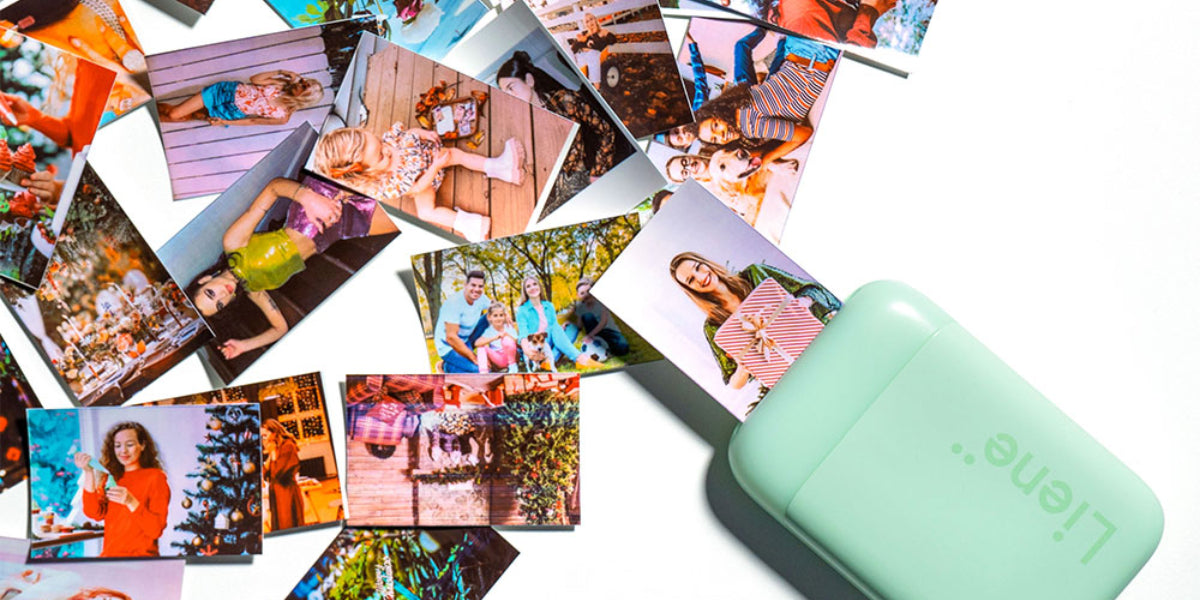
Maintaining optimal performance for your Bluetooth printer designed for iPhones requires thoughtful and consistent care practices. Serving as a pivotal accessory in the digital age, a Bluetooth printer seamlessly connects to your iPhone, translating digital memories into tangible prints. This article explores crucial tips and techniques for sustaining your Bluetooth printer to ensure its peak performance. By comprehending and applying proper care measures, you can extend the longevity and efficiency of your bluetooth photo printer, ensuring its continued delivery of high-quality prints. Discover the essential practices to maximize the performance of your Bluetooth printer as it remains a reliable companion in transforming your iPhone photos into tangible keepsakes. Significance of Bluetooth Phone Printer Maintenance Maintaining your Bluetooth phone printer is crucial for sustaining its functionality and ensuring lasting performance. Bluetooth printing, with its inherent convenience and immediacy, plays a vital role in transforming digital memories into tangible prints directly from your smartphone. By regularly cleaning the printer's components, keeping an eye on firmware updates, and handling consumables with care, you not only contribute to consistent print quality but also extend the printer's lifespan. The reliability of a well-maintained Bluetooth printer enhances your ability to transform iPhone memories into vibrant, tangible keepsakes. This maintenance routine safeguards against potential issues and enhances the overall reliability of your Bluetooth phone printer. Serving as a bridge between the digital and physical realms, a well-maintained Bluetooth phone printer continues to provide on-demand, high-quality prints, upholding its pivotal role in preserving and sharing your cherished memories. Key Maintenance Practices Maintaining your Bluetooth phone printer is crucial for ensuring its longevity and optimal performance. Here are key practices to keep your device in top condition: ● Cleaning and Dust Prevention Regularly clean your Bluetooth phone printer's components to prevent dust and debris buildup, ensuring optimal functionality. Regular cleaning not only preserves the aesthetics of the device but also contributes significantly to its longevity and efficient performance. For Liene's Amber 4x6 photo printer, benefit from its seamless dust-resistant design. This unique feature adds an extra layer of protection, preventing dust from infiltrating internal components. In the case of the Pearl 2x3 portable photo printer, enjoy the added functionality of a clean print head. This feature ensures that the print head remains free from dust and other particles, optimizing print quality and minimizing the risk of issues related to dirty or clogged print heads. ● Regular Firmware Updates Consistently staying abreast of firmware updates is paramount to leveraging continual enhancements, bug fixes, and the integration of novel features that collectively augment the overall performance of your Bluetooth phone printer. ● Optimizing Connectivity Achieving uninterrupted connectivity is paramount; therefore, it is imperative to meticulously optimize the Bluetooth settings on both your smartphone and Bluetooth photo printer for iphone. By taking a conscientious approach to fine-tune these settings, you lay the foundation for a stable and robust connection, thereby fortifying the seamless link between your smartphone and printer. This process involves a thorough examination and adjustment of Bluetooth configurations, ensuring that the connection remains resilient and efficient. ● Paper and Ink Management Vigilantly oversee the levels of both paper and ink in your Bluetooth phone printer to proactively circumvent potential interruptions mid-printing. Cultivate a routine of regular checks and timely replenishment of these essential supplies to sustain a seamlessly smooth operational flow. ● Avoiding Overheating To mitigate the risk of overheating, it is advisable to position your Bluetooth phone printer strategically in well-ventilated spaces. This precautionary measure is instrumental in averting potential issues that may arise from excessive heat, safeguarding the printer's overall performance and extending its operational lifespan. ● Troubleshooting Common Issues Become acquainted with prevalent issues that may arise with your Bluetooth phone printer, and familiarize yourself with the corresponding troubleshooting steps. This proactive approach empowers you to promptly address any challenges that may surface, minimizing potential downtime and ensuring the uninterrupted functionality of your device. ● Protective Storage When your Bluetooth phone printer is not actively in use, it is advisable to store it within a protective case or cover. This protective measure serves to shield the printer from the accumulation of dust, potential spills, and inadvertent physical damage. By adopting this practice, you contribute to the longevity and sustained quality of your printer, emphasizing responsible device management. ● Regular Inspection Institute a routine schedule for the periodic inspection of your Bluetooth phone printer. During these inspections, scrutinize the device for any discernible signs of wear, loose components, or irregularities. Detecting and addressing potential issues at their nascent stages ensures that your printer operates optimally and mitigates the risk of more significant problems. ● Professional Servicing Consider availing professional servicing for your Bluetooth phone printer at regular intervals. Engaging the expertise of a qualified technician ensures comprehensive maintenance, addressing internal intricacies, and verifying the device's overall health. This commitment to professional care enhances the printer's longevity and assures continuous optimal performance. Conclusion Ensuring the regular maintenance of your Bluetooth printer for iPhone is crucial for preserving its optimal performance. Implementing these care measures not only guarantees consistent high-quality prints but also extends the longevity of this essential device. By embracing these practices, you safeguard your printing experiences and foster a seamless connection between your digital world and tangible memories.

In a time when capturing memories is inseparable from the digital landscape, the revival of instant picture printers brings forth a nostalgic essence and tangible endurance to our visual reminiscences. These convenient and compact gadgets have garnered favor for their capacity to instantly convert digital snapshots into tangible prints.Nevertheless, maneuvering through the diverse market offerings of instant picture printers can be daunting without proper guidance. This article presents seven crucial tips to aid potential buyers in making well-informed decisions, guaranteeing that the selected Bluetooth photo printer and Wi-Fi photo printer harmonizes effortlessly with their preferences and needs. Why Buy an Instant Picture Printer? Investing in an instant picture printer offers a myriad of compelling reasons, making it a valuable addition to your repertoire of gadgets. Users can effortlessly print their favorite photos directly from their smartphones or cameras, eliminating the need for intricate setups or cumbersome connections. This streamlined process aligns with the fast-paced nature of modern lifestyles, offering a hassle-free way to bring digital memories to life with just a few taps. Portability is another compelling feature that makes investing in an instant picture printer an attractive proposition. These devices are designed to be lightweight and compact, allowing users to carry them anywhere and print photos on the go. Beyond convenience and portability, an instant picture printer contributes significantly to enhanced memory preservation. While digital photos might get lost in the vast sea of smartphone galleries, printed photos serve as tangible reminders of cherished moments. Personalization is another key factor that makes investing in an instant picture printer a worthwhile decision. These devices allow users to customize their prints, adding a personal touch to each photo. Tips to Consider When Selecting Instant Photo Printers When exploring the market for Instant photo printers, several pivotal factors come into play that can significantly impact your decision. Keep the following tips in mind to guarantee that the instant picture printer you select meets your expectations: ● Print Quality The fundamental objective of a Bluetooth or Wi-Fi photo printer for iPhone is to deliver prints of superior quality. Scrutinize the print resolution and color accuracy to ensure that your cherished memories are faithfully reproduced with sharpness and vividness. Professional instant photo printers often have the function of automatic lamination. The photo paper is waterproof, dustproof, prevents oxidation, and can be stored for a longer period of time. Reading user reviews and examining sample prints can offer valuable insights into the printer's overall performance. ● Printing Technology Various instant picture printers employ distinct printing technologies, including thermal printing, Zink printing or inkjet printing. Familiarize yourself with the characteristics of each technology and choose the one that aligns with your preferences. Thermal printers are renowned for their swiftness, while inkjet printers often provide a broader color gamut. Zink printing technology is a zero-ink technology that is more environmentally friendly. This technology is used by many top brands, such as Liene. ● Print Speed Especially for on-the-go printing, speed becomes a pivotal factor. Evaluate the print speed of the printer, particularly if you prioritize rapid and efficient printing. A faster print speed ensures that you can seamlessly produce multiple prints, making it ideal for events or capturing spontaneous moments. ● Connectivity Options Bluetooth connectivity stands out as a crucial feature in instant picture printers. Verify that the printer is compatible with your smartphone and offers stable Bluetooth connectivity. Some printers also incorporate additional connectivity options, such as USB or built-in Wi-Fi, providing versatility in how you connect your devices. If you’re looking for an instant photo printer with built-in Wi-Fi, the Liene Amber 4x6 Instant Photo Printer can meet your needs. ● Mobile App Compatibility The mobile app associated with the instant picture printer significantly influences the overall user experience. Verify the compatibility of the printer's app with your smartphone's operating system. A user-friendly app enhances the printer's functionality and streamlines the printing process, making it more intuitive. ● Size and Portability An inherent advantage of instant picture printers lies in their portability. Consider the size and weight of the printer to ensure it aligns with your mobility requirements. A compact and lightweight design enhances the convenience of carrying the printer with you wherever you go. ● Battery Life Given that instant picture printers are tailored for on-the-go usage, evaluating the battery life becomes paramount. A more extended battery life ensures that you can print multiple pictures without the need for frequent recharging. This feature becomes particularly crucial during events or travel where access to power sources may be limited. Summing Up Selecting the ideal instant picture printer requires a careful assessment of factors such as print quality, technology, speed, connectivity options, compatibility with mobile apps, size, and battery life. By bearing these considerations in mind, you can make a knowledgeable choice that resonates with your printing preferences, guaranteeing a smooth and delightful experience with your newly acquired device.

Producing top-notch photos through a phone printer represents a revolutionary approach to converting digital memories into tangible mementos. Given that smartphones serve as primary archives for visual moments, the ability to generate vivid and detailed prints directly from these devices introduces an element of personalization and immediacy to the photo-printing process.This article explores key tips and strategies to attain optimal print quality from Bluetooth printers for iPhone, guaranteeing that each photograph mirrors the vibrancy and clarity of the original digital image. Learn the procedure to enhance your photography journey and preserve moments with unparalleled precision. What Does a Phone Printer Do? A phone printer acts as a portable gadget enabling users to print photos directly from their smartphones. Operating as a compact and user-centric accessory, it seamlessly connects the digital and physical domains, converting digital images into tangible prints. Boasting attributes such as wireless connectivity and instant printing, a phone printer offers a hassle-free and prompt method for generating physical copies of digital memories. This portable solution empowers users to instantly materialize their favorite moments, providing a tangible manifestation of cherished memories that transcends the limitations of digital screens. Print High-Quality Photos from a Phone Printer Now! Phone printers offer a seamless and convenient solution for turning your digital snapshots into tangible keepsakes. Let us learn the essential tips and techniques to ensure optimal print quality from your phone printer, enhancing your photography experience and immortalizing your memories with unmatched precision. ● Choosing the Right Phone Printer Liene stands out as a reputable brand in the realm of phone printers, offering a range of models to cater to different preferences. Two notable series are Amber 4x6 Photo Printer and Pearl K100 2x3" Portable Photo Printer. These models combine sleek design, user-friendly interfaces, and cutting-edge printing technology to ensure a hassle-free experience in turning your smartphone photos into high-quality prints. ● Exploring Liene's Phone Printer Models The Amber Series caters to those who prioritize versatility and larger print sizes, generating impressive 4x6-inch prints for users seeking enhanced details in their photos. Its compact and stylish design renders it a portable companion for events, travel, or casual home use. Focusing on portability and smaller print sizes, the Pearl Series is an excellent choice. Capable of printing 2x3-inch photos, it serves as an ideal on-the-go solution for spontaneous moments. The Pearl Series seamlessly combines efficiency with style, offering a compact and sleek design that complements your smartphone. ● Optimizing Your Smartphone Photos Before directing your photos to the mobile bluetooth printers, take a moment to optimize them for optimal results. Consider factors such as resolution, color accuracy, and composition. Ensure that your smartphone camera settings align with lighting conditions, and experiment with diverse angles to capture the essence of each moment. ● Understanding Print Settings Most phone printers, including those from Liene, provide customizable print settings. Familiarize yourself with these settings to fine-tune aspects like brightness, contrast, and saturation. Experimenting with these settings empowers you to tailor the printing process to match your preferences and the unique characteristics of each photo. ● Utilizing Editing Apps for Enhancement For an added layer of creativity and enhancement, leverage editing apps like the Liene Photo APP. This dedicated app furnishes a user-friendly interface for adjusting various aspects of your photos, from filters to cropping. Enhancing your photos before sending them to the printer allows you to achieve personalized and visually striking prints. ● Printing Process Step-by-Step Once you've chosen the perfect photo and made any necessary adjustments, the printing process with a Liene phone printer unfolds seamlessly. Connect your smartphone to the printer using Bluetooth or other compatible options. Access the Liene Photo APP to select your preferred print settings and hit print. Witness your digital memories spring to life in vibrant, high-quality prints. ● Caring for Your Prints Once the printing process comes to an end, it is important to handle your prints delicately. Ensure they are allowed to dry completely and store them in a cool, dry environment to maintain their quality and longevity. Additionally, contemplate the idea of placing these prints in photo albums or frames as an elegant means to exhibit and celebrate your cherished memories. ● Showcasing the Printed Results The joy of holding your smartphone photos as tangible prints is unparalleled. Whether creating a physical photo album, decorating your living space, or sharing prints with loved ones, the results stand as a testament to the fusion of digital convenience with the timeless charm of printed photographs. Conclusion Achieving the process of printing top-notch photos from Liene's phone printer models seamlessly combines technological prowess with creative finesse. The selection of an appropriate printer, enhancement of smartphone photos, utilization of editing apps, and adherence to a straightforward printing procedure yield vivid and personalized prints.
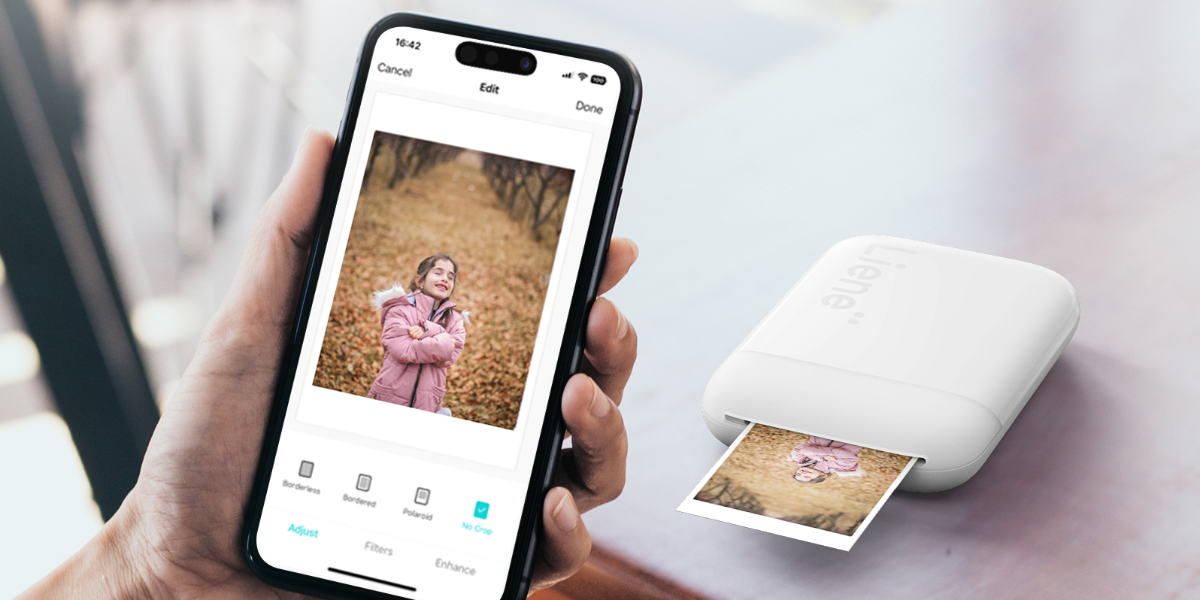
In the age of smartphones and digital photography, the art of printing photos has taken a backseat. We often find ourselves immersed in the digital realm, scrolling through countless images on our devices, reminiscing about precious moments captured in pixels. The ease of access to our photo libraries has undoubtedly transformed the way we view and share memories. However, amidst this digital era, the intrinsic charm of holding a physical photograph in your hands remains unparalleled—a tangible memory that transcends the boundaries of a screen, evoking a sense of nostalgia and sentimentality. The rise of mini photo printers has introduced a delightful resurgence to the tradition of holding and sharing physical prints. These compact and portable devices enable us to transform our smartphones into on-the-go photo studios, facilitating an effortless transition from the digital to the physical realm. The convenience of mini photo printers allows us to capture and cherish our moments in a tangible form, fostering a deeper connection with our memories. The Liene’s portable photo printers stand out with their compact design and wireless capabilities, making them an ideal choice for those who want to capture and share moments on the go. Understanding Mini Photo Printers Before diving into the step-by-step guide, let's explore what mini photo printers are and why they've become a popular accessory for smartphone users. ● What is a Mini Photo Printer? A mini photo printer is a compact, portable device designed to print small photos directly from your smartphone or other compatible devices. These printers typically use thermal or inkless printing technology to produce smudge-proof, durable prints. They are user-friendly, often connect wirelessly to your smartphone, and come in various styles and sizes. Why Use a Mini Photo Printer? ● Instant Gratification Mini photo printers provide instant prints, allowing you to hold your captured moments in your hands within minutes. ● Portability These printers are small enough to fit in your pocket or bag, making them ideal for on-the-go printing at parties, gatherings, or travel destinations. ● No Need for a Computer With mini photo printers, you don't need a computer or any special software. All you need is your smartphone and the printer. ● Creative Possibilities Mini photo printers allow you to get creative with your photos. You can print stickers, create collages, or decorate your space with your favorite memories. Step-By-Step Exploration of Photo Printing from Your Smartphone Now that we understand the appeal of mini photo printers, let's dive into the step-by-step guide on how to print photos from your smartphone. ● Step 1: Choose the Right Mini Photo Printer The first step in printing photos from your smartphone is selecting the right mini photo printer for your needs. Consider factors such as print quality, size, connectivity options, and compatibility with your smartphone. The Liene Pearl K100 2x3" Portable Photo Printer, with its compact design and wireless capabilities, offers a seamless way to bring your digital photos to life. Print Quality: Look for a printer that offers good print quality with vibrant colors and sharp details. Check reviews and sample prints to get an idea of the output. Size and Portability: Mini photo printers come in various sizes. Choose one that fits your lifestyle, whether you want it to be ultra-portable for travel or slightly larger for home use. Connectivity Options: Most mini photo printers connect to your smartphone via Bluetooth or NFC. Ensure that the printer you choose is compatible with your smartphone's operating system (iOS or Android). Print Size: Different printers support various print sizes. Some produce wallet-sized prints, while others offer a square format. Choose a printer that aligns with your preferences. ● Step 2: Install the Printer App Once you've chosen and purchased your mini photo printer, the next step is to install the accompanying app on your smartphone. Most manufacturers provide a dedicated app that allows you to control the printer, select photos, and make adjustments before printing. Visit the App Store: Depending on your smartphone's operating system, visit the App Store (iOS) or Google Play (Android) and search for the app associated with your mini photo printer. Download and Install: Once you find the app, download and install it on your smartphone. Follow the on-screen instructions to complete the installation. Pair Your Smartphone with the Printer: Open the app and follow the prompts to pair your smartphone with the mini photo printer. This usually involves turning on Bluetooth and selecting your printer from the available devices. To unlock the full potential, Liene Pearl offers the Liene Photo App for its K100 Photo printer. Download the Liene Photo App from the App Store (for iOS devices) or Google Play Store (for Android devices). This dedicated app complements the printer, offering a range of customization options and creative features to enhance your printed photos. ● Step 3: Load Paper into the Printer In case you are not using the Liene Pearl Portable Photo Printer which offers the Zink photo papers eliminating the need to install papers from time to time, then follow this step. This feature makes Liene Photo printers more environmentally friendly and easy to carry anywhere you want. With the app installed and your smartphone connected to the printer, it's time to load the printing paper. Mini photo printers use specific types of paper that often come in packs with the printer or are available for purchase separately. Open the Printer: Depending on the model, open the top or side of the mini photo printer to reveal the paper compartment. Insert the Paper: Follow the instructions provided by the manufacturer to load the printing paper correctly. It's crucial to insert the paper with the printing side facing down. Secure the Paper: Ensure that the paper is securely loaded, and close the compartment as per the manufacturer's guidelines. ● Step 4: Choose and Edit Your Photos With the printer set up and paper loaded, it's time to select the photos you want to print. Open the printer app and choose the images from your smartphone's gallery or social media accounts. Select Photos: Navigate through the app to choose the photos you want to print. Some apps allow you to select multiple photos for collage-style prints. Edit if Necessary: Many printer apps offer basic editing features such as cropping, filters, and text overlays. Make any adjustments to your photos to achieve the desired look. Arrange for Printing: Once you've selected and edited your photos, arrange them in the app based on your preferences. Some apps allow you to create collages or add frames to enhance the prints. ● Step 5: Adjust Print Settings Before hitting the print button, take a moment to review and adjust the print settings. Depending on the app and printer, you may have options to tweak aspects such as brightness, contrast, and print size. Print Quality: Some apps allow you to choose the print quality. Higher-quality settings generally result in better prints but may take longer to process. Color Adjustments: If your printer app offers color adjustments, consider tweaking them to ensure your prints match your preferences. Print Size: Confirm that the selected print size aligns with the paper loaded in the printer. Mismatched sizes can result in incomplete or distorted prints. Liene Pearl K100 2x3" Portable Photo Printer comes with all these features to help you elevate the quality of your prints and make them more realistic. If you are looking for a more economical and unique mini photo printer, then this is the right match for you. ● Step 6: Hit the Print Button With all the settings in place, it's time to bring your digital memories to life. Press the print button within the app, and the mini photo printer will start processing and printing your selected photos. Wait for Processing: Depending on the complexity of your selected photos and the print settings, the processing time may vary. Be patient as the printer prepares to bring your images to life. Collect Your Prints: Once the printing process is complete, the mini photo printer will eject the prints. Collect them carefully, and avoid touching the printing surface until the ink or thermal material has fully set. ● Step 7: Share and Decorate Congratulations! You've successfully printed photos from your smartphone using a mini photo printer. Now, it's time to share your prints with others, create a physical photo album, or decorate your space with these tangible memories. Share with Friends and Family: Hand out the prints to friends and family to share the joy of the captured moments. Mini photo prints make excellent keepsakes and gifts. Create a Photo Wall: Consider creating a photo wall or bulletin board to display your favorite prints. You can use frames, string lights, or other creative elements to enhance the visual appeal. Conclusion: Crafting Memories All at a Once Printing photos from your smartphone with a mini photo printer is a delightful and straightforward process that brings your digital memories to life. Whether you're creating a physical album, decorating your space, or sharing prints with loved ones, mini photo printers add a tangible and personal touch to your digital photography experience. The Liene Pearl K100 2x3" Portable Photo Printer, with its user-friendly design and Zink technology, stands as a gateway to the world of instant and portable photo printing. This in-depth guide has unveiled the intricacies of each step, allowing you to navigate the process with confidence. Embrace the nostalgia of tangible photographs, explore your creativity with the Liene Photo App, and let the Liene Pearl K100 be your companion in capturing and sharing moments on the go. With this mini photo printer, the joy of holding memories in your hands is not just a print away; it's a journey of creative expression and cherished keepsakes.
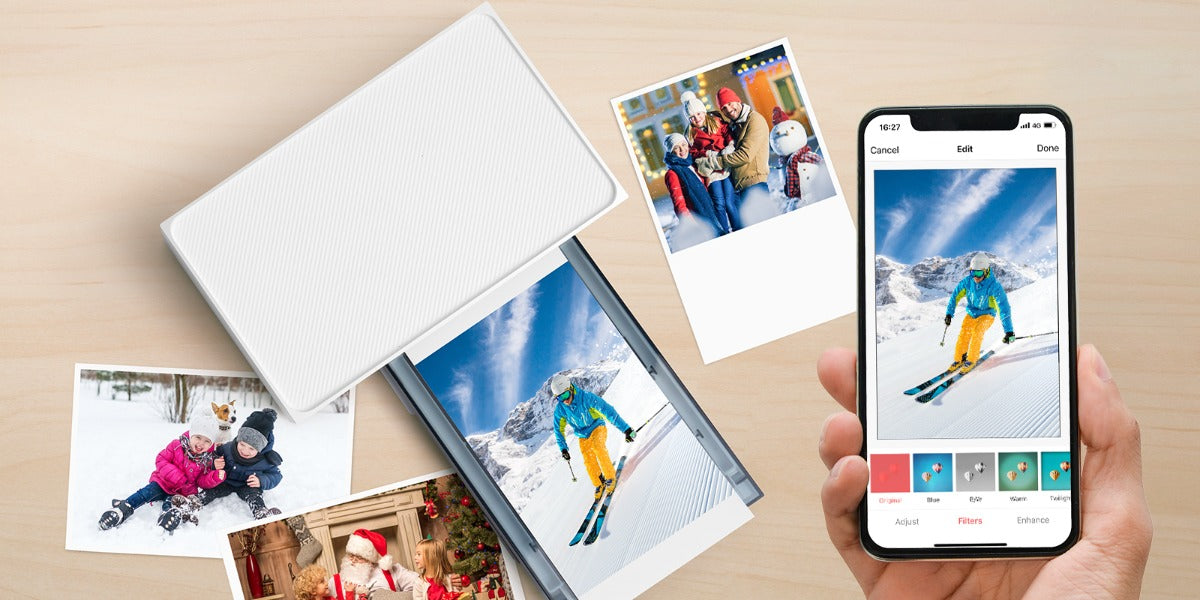
In our fast-changing technology world, preserving special moments is a timeless wish. Smartphones, especially iPhones, have redefined how we capture life. While storing memories digitally is handy, there's something magical about holding actual photos. Enter the captivating world of 4x6 photo printers, focusing on the growing popularity of instant printers connecting effortlessly with iPhones. This article will delve into a deep study of photo printers and the step-by-step guide to printing photos using instant photo printers. Navigating the Universe of 4x6 Photo Printers At the core of photo printing lies the 4x6 photo printer, a device specifically engineered to produce prints of 4 inches by 6 inches—a popular and versatile size for snapshots. These printers vary in technology, with inkjet and thermal dye sublimation printers being two prominent contenders. ● Inkjet Printers: A Versatile Option Inkjet printers utilize the ingenious mechanism of propelling tiny droplets of ink onto the paper. Renowned for their ability to produce vibrant and detailed prints, inkjet printers have been a staple in photo printing for years. However, considerations such as print speed and the cost of ink cartridges come into play. ● Thermal Dye Sublimation Printers: Efficiency Personified On the other hand, thermal dye sublimation printers operate by using heat to transfer dye onto the photo paper. This method often results in prints that are not only visually striking but also resistant to fading. These printers are known for their speed and user-friendly experience, making them an attractive choice for those seeking efficiency in their photo printing endeavors. The Symbiosis of Photo Paper and Cartridges Getting the best prints from your photo printer involves two main partners: the right photo paper and compatible cartridges. Just like a good dance partner, premium photo paper is essential for keeping your prints vibrant and long-lasting. On the other hand, compatible cartridges are like the rhythm of the music, playing a crucial role in maintaining the printer's performance and making sure every step (or print) is of the highest quality. So, when choosing your supplies, think of it as picking the perfect dance shoes and music for a flawless performance! Exceptional Features of Liene Amber 4x6 Instant Photo Printer Amidst the myriad options in the market, Liene Amber 4x6 Instant Photo Printer emerges as a noteworthy contender. Boasting features that prioritize both quality and convenience, this printer has garnered attention for its seamless integration with iPhones.Let's delve into the features that set the Liene Amber apart in the realm of instant photo printers: ● Thermal Dye Sublimation Technology The Liene Amber's innovative thermal dye sublimation technology infuses prints with remarkable vibrancy, creating images that not only captivate the eye but also stand the test of time. This cutting-edge technology ensures that your digital memories are preserved in a form that maintains their vividness and brilliance, offering a timeless quality that transcends the fleeting nature of moments. ● Wireless Connectivity No longer confined by the limitations of wired connections, the Liene Amber's wireless prowess extends beyond iOS devices embracing a diverse spectrum of digital platforms. This broad compatibility ensures that users can effortlessly navigate their digital libraries and transform cherished moments into tangible 4x6 prints, all without the hassles of cables or complicated setups. The freedom bestowed by the Liene Amber's built-in WiFi not only simplifies the printing process but also opens a gateway to a seamless, wireless world of photo printing possibilities. ● Versatile Print Bundle Option Recognizing the diverse needs of users, the Liene Amber is available in various packages. Whether you opt for the printer with 20 sheets and 1 cartridge or the bundle with 100 sheets and 3 cartridges, you have the flexibility to choose the option that aligns with your printing requirements. ● Built-in Rechargeable Battery For the wanderers and explorers, the Liene Amber Instant Photo Printer White with its built-in rechargeable battery is a game-changer. This feature adds a level of portability that traditional printers often lack, allowing you to print your photos anytime, anywhere. ● Pricing and Savings Understanding the pricing structure and potential savings is crucial for consumers. The Liene Amber Instant Photo Printer is competitively priced, with occasional discounts and promotions. For example, a printer bundle with 100 sheets and 3 cartridges can provide you substantial savings from the regular price. Printing 4x6 Photos from iPhone Using Liene Amber: A Step-by-Step Guide Now that we've explored the features of the Liene amber instant photo printers, let's walk through the steps to print your cherished 4x6 photos from your iPhone: ● Step 1: Unboxing and Setup Upon receiving your Liene Amber Instant Photo Printer, embark on the exciting journey of unboxing. Carefully inspect all components, ensuring that the photo papers and cartridges are present. Follow the step-by-step setup instructions provided in the user manual to prepare your printer for its inaugural print. ● Step 2: Print from the iOS Device Liene Desktop Printer allows you to print directly from your iPhone album without any other app assistance. Make sure that the device is connected to the printer Wi-Fi hotspot, and the Wi-Fi hotspot indicator lights on in blue, confirm that you agree to use this network. Open the album and select the photos, then select the printer, adjust the printing parameters, and print. Or Print within the Liene Mobile App ● Step 1: Install Liene Mobile App To streamline the printing process, navigate to the app store on your iPhone and download the Liene mobile app. This app serves as the bridge between your iPhone and the Liene Amber Instant Photo Printer, offering a user-friendly interface for selecting and editing your photos. ● Step 2: Connect Your iPhone to the Printer With the Liene Amber powered on, ensure that it's in wireless printing mode. Open the Liene app on your iPhone and follow the on-screen instructions to establish a Wi-Fi connection between your iPhone and the printer. Once the connection is established, you're primed and ready to commence the printing journey. ● Step 3: Select and Edit Photos Enter the captivating realm of your iPhone's photo gallery within the Liene app. Browse through your collection and select the 4x6 photos that hold a special place in your heart. Utilize the app's editing features to fine-tune aspects such as brightness, contrast, and color saturation, adding a personal touch to your prints. ● Step 4: Initiate the Printing Process With your photos selected and edited to perfection, it's time to bring them to life. Hit the print button within the Liene app, triggering the Liene Amber Instant Photo Printer into action. Witness the magic of thermal dye sublimation technology as your 4x6 prints materialize with a level of detail and vibrancy that pays homage to the original moment. Addressing Common Queries: Liene Amber FAQ As with any technological innovation, users may have questions and concerns. Here are answers to some frequently asked questions about the Liene Amber 4x6 Instant Photo Printer: ● Q1: Why buy from the Liene Store? A: The Liene Store offers compelling reasons to choose its products, making it more than a transaction; it's an experience. The store boasts a 30-day Free Return Policy, Fast and Free Shipping Storewide, and a reassuring 1-Year Warranty on Products. Additionally, all products are backed by Lifetime Customer Support. ● Q2: How long does it take for the Liene Amber to print a 4x6 photo? A: The printing time can vary, but generally, Liene Amber's thermal dye sublimation technology ensures relatively fast printing. The exact time may depend on factors such as the complexity of the image and the printer settings. ● Q3: Are there any special maintenance requirements for the Liene Amber? A: The Liene Amber is designed for user-friendly operation with minimal maintenance. Regularly cleaning the printhead and ensuring the device is stored in a cool, dry place can contribute to optimal performance. Specific maintenance instructions can be found in the user manual. ● Q4: Can I print black and white photos with the Liene Amber? A: Yes, the Liene Amber supports both color and black-and-white printing. You can choose the printing mode within the Liene app when selecting and editing your photos. ● Q5: Can I return or exchange a product? A: Absolutely. The Liene Store understands the dynamic nature of consumer needs. As such, they offer a 30-day Free Return Policy. Details regarding the Return and Exchange Policy can be found on the official website. Conclusion: Bridging the Digital and Tangible Gap As we traverse the ever-evolving landscape of technology, the allure of holding a tangible photograph remains timeless. The Liene Amber 4x6 Instant Photo Printer serves as a bridge between the digital and tangible, offering a user-friendly and efficient means of turning your digital memories into lasting prints. Whether you're printing a single snapshot or curating a collection of cherished moments, the combination of thermal dye sublimation technology, wireless connectivity, and user-centric features positions the Liene Amber as a reliable companion in the quest to immortalize your memories.
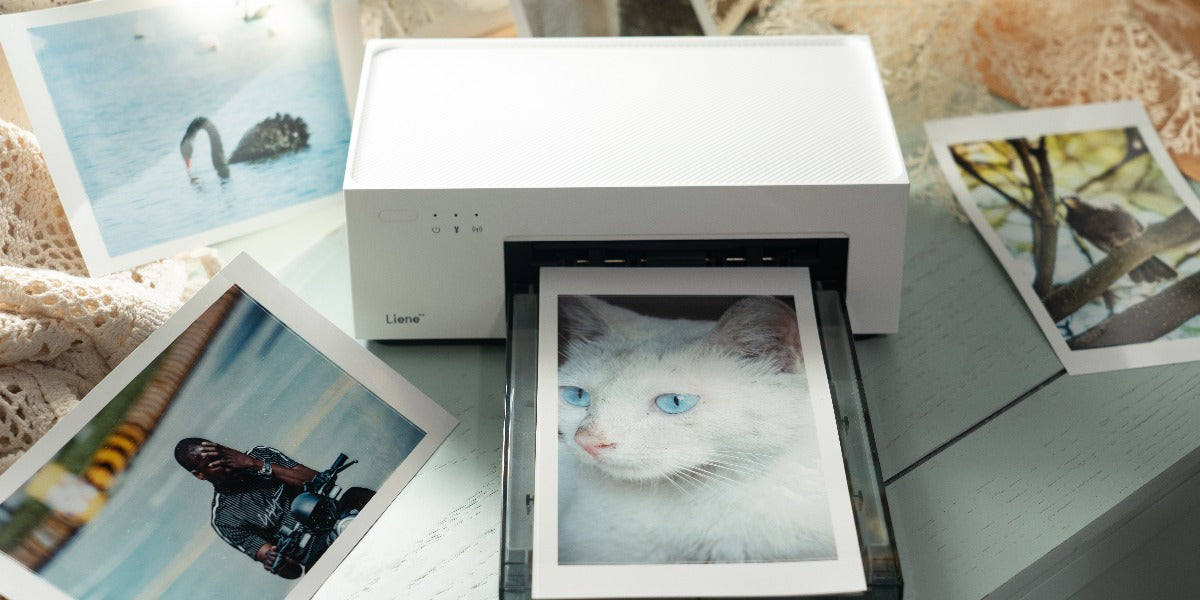
In the ever-evolving landscape of digital photography, where pixels often replace prints, there's a poignant nostalgia for the tactile experience of physical photographs. This resurgence in appreciation for tangible prints is not just a mere throwback; it's a testament to the enduring allure of holding memories in your hands. Instant photo printers, with Liene leading the way in innovation, play a pivotal role in rekindling this tangible joy of capturing and sharing moments.In this comprehensive guide, we will explore essential tips for instant photo printing using Liene instant photo printers, focusing on how to enhance photo quality and ensure the long-term preservation of your precious snapshots. Understanding the Basics of Instant Photo Printing Before delving into the intricacies of enhancing photo quality and preservation, let's take a moment to grasp the fundamentals of instant photo printing. Unlike the traditional photo development process, instant photo printers provide a swift and convenient means to transform digital images into tangible prints. Liene, a reputable brand in this realm, stands out for its commitment to merging cutting-edge technology with the timeless charm of printed photographs. Whether you're a photography enthusiast or someone looking to capture everyday moments, Liene's diverse range of instant photo printers ensures there's a perfect match for everyone, offering features that cater to various preferences and needs. Two Models of Liene Instant Photo Printers Liene's lineup includes the Liene Amber 4x6" Instant Photo Printer and the Liene Pearl K100 2x3" Portable Photo Printer. Liene Amber 4x6 Instant Photo Printer promises superior photo quality, seamless connectivity, and personalized customization—all packed into a compact device. With features like built-in rechargeable batteries, these printers are designed for on-the-go photo printing, ensuring no moment is left undocumented. Pearl 2x3" Portable Photo Printers, adds an extra layer of spontaneity, making it an ideal companion for capturing memories wherever you go. Whether you opt for the Liene Amber for larger 4x6" prints or the Liene Pearl K100 for smaller, pocket-sized photos, both models aim to rekindle the charm of physical photography. Tips for Enhancing Photo Quality Now, let's delve into actionable tips that will elevate the quality of your instant prints, making them stand out and preserving your memories in the best possible way. ● Choose the Right Photo Paper and Cartridges The foundation of a great print lies in the quality of the paper and cartridges used. Liene offers a range of options, such as the Liene Amber 4x6 Instant Photo Printer with 20 photo papers and 1 cartridge or the Liene Pearl K100 2x3" Portable Photo Printer with Zink-Zero Ink printing technology. Each type of paper and cartridge combination may influence color vibrancy, sharpness, and print longevity, so choose according to your preferences and needs. ● Optimize Print Settings Most instant photo printers, including those by Liene, come with adjustable print settings. Experiment with options like color modes, print resolution, and filters to find the combination that best suits your photo. Some printers offer specific modes for classic prints, ID photos, and more, providing flexibility for different occasions. ● Take Advantage of Editing Features Liene's dedicated photo app turns the printing process into a creative adventure. With a variety of editing features, including popular frames, creative filters, and effects, this app becomes your artistic companion. It's not just about printing; it's about transforming your photos into unique pieces of art. So, don't hesitate to explore these features and infuse your prints with a touch of personal flair, making each photo a one-of-a-kind memory to cherish. ● Mind the Dimensions and Resolution Understanding the dimensions and resolution of your photos is crucial for achieving optimal print quality. Ensure that the resolution of your digital image matches the intended print size. Liene's Amber 4x6 Instant Photo Printer, for example, caters to 4" x 6" prints, while the Pearl K100 focuses on 2" x 3" prints. Matching your digital image dimensions to the intended print size helps prevent pixelation and ensures clarity. ● Consider Lighting and Composition Remember that the quality of the original photo impacts the print outcome. Pay attention to lighting and composition when capturing moments. Well-lit, well-composed photos are more likely to translate into stunning prints. Natural light is often preferable, as it brings out the details and colors in your photographs. If you are a travel enthusiast, don’t forget to check the portable photo printers offered by Liene. Tips for Preservation and Longevity Preserving the quality of your instant prints goes beyond the printing process. It's about choosing the right paper size, understanding print technology, and using quality materials. Liene's commitment to providing reliable materials ensures your prints are a testament to vibrant memories. Additionally, storing your prints properly away from sunlight and extreme conditions is vital. Embracing the nostalgia of physical prints while utilizing modern technology for backup ensures your cherished moments remain vivid and lasting, creating a bridge between the past and the future in the world of photography. Let’s take a deep look at these tips to ensure that your memories remain vibrant and intact for years to come. ● Choose the Right Paper Size Liene's instant photo printers offer different paper sizes, such as 4" x 6" and 2" x 3". Consider the purpose and context of your photos when selecting the paper size. Larger prints might be suitable for framing and displaying, while smaller ones are perfect for creating personalized photo albums or sharing with friends. ● Understand Print Technology Different instant photo printers employ various print technologies. Liene's Amber series uses Thermal-Dye Sublimation Technology, ensuring vibrant and detailed prints. The Pearl K100, on the other hand, utilizes Zink-Zero Ink printing technology. Understanding the technology behind your chosen printer can help you appreciate its unique characteristics and make informed decisions about print quality. ● Use Quality Materials Beyond the printer itself, the quality of materials you use plays a role in preserving prints. Ensure that the photo paper and cartridges are of high quality. Liene's commitment to providing a seamless experience includes offering reliable materials for your printing needs. ● Store Prints Properly Once your photos are printed, how you store them matters. Keep them away from direct sunlight, extreme temperatures, and humidity. Consider using photo albums with acid-free pages to prevent yellowing and degradation over time. ● Embrace Technology for Backup While the charm of physical prints is undeniable, consider backing up your digital photos as well. This ensures that even if a physical print is lost or damaged, you have a digital copy for reprinting. FAQs regarding Instant Photo Printing ● Q1: Why should I choose an instant photo printer over traditional printing methods? A1: Instant photo printers offer the convenience of transforming digital images into tangible prints in a matter of seconds. They provide a quick and accessible way to preserve memories without the need for external printing services. ● Q2: How do Liene instant photo printers stand out in the market? A2: Liene instant photo printers, such as the Amber and Pearl series, stand out with features like superior photo quality, seamless connectivity, and personalized customization. The printers cater to different preferences, with options like built-in rechargeable batteries for on-the-go printing. ● Q3: What role does paper size play in the overall printing experience? A3: Paper size determines the physical dimensions of your prints. Larger sizes are suitable for framing, while smaller ones are ideal for creating personalized photo albums or sharing with friends. Liene's printers offer options like 4" x 6" and 2" x 3" to cater to diverse needs. ● Q4: How can I optimize print settings for the best results? A4: Experiment with color modes, print resolution, and filters provided by your instant photo printer. Liene printers, for instance, often come with specific modes for classic prints, ID photos, and more. Adjusting these settings according to your photo and preferences can significantly enhance print quality. ● Q5: What is the significance of understanding print technology? A5: Different instant photo printers use various print technologies. Liene's Amber series employs Thermal-Dye Sublimation Technology for vibrant prints, while the Pearl K100 uses Zink® Zero Ink printing technology. Understanding these technologies helps you appreciate the unique characteristics of your printer and make informed decisions about print quality. Summing Up To wrap it up, making real prints from your digital photos is like making your memories last longer. Liene's printers, with the function of instant photo printing, help you do this in a special way. The tips we talked about aren't hard rules; they're like guides to make your prints look even better and stay safe for a long time.Whether you pick the bigger Amber 4x6 instant printer or the mini portable photo printer Pearl K100 for on-the-go memories, these tips are here to help. It's not just about the steps; it's about making your memories pop with colors and feelings. So, have fun with your instant prints, feel the joy of holding your memories, and turn those moments into treasures you can keep forever.
2 / 3